> For the complete documentation index, see [llms.txt](https://docs.folio.works/llms.txt). Markdown versions of documentation pages are available by appending `.md` to page URLs; this page is available as [Markdown](https://docs.folio.works/for-companies/contract-work.md).
# Review work and manage contracts
Use the contract to review a clinician's logged hours, record work on their behalf, and pause or resume the engagement. Work entries are visible to both you and the clinician.
## Review or record work
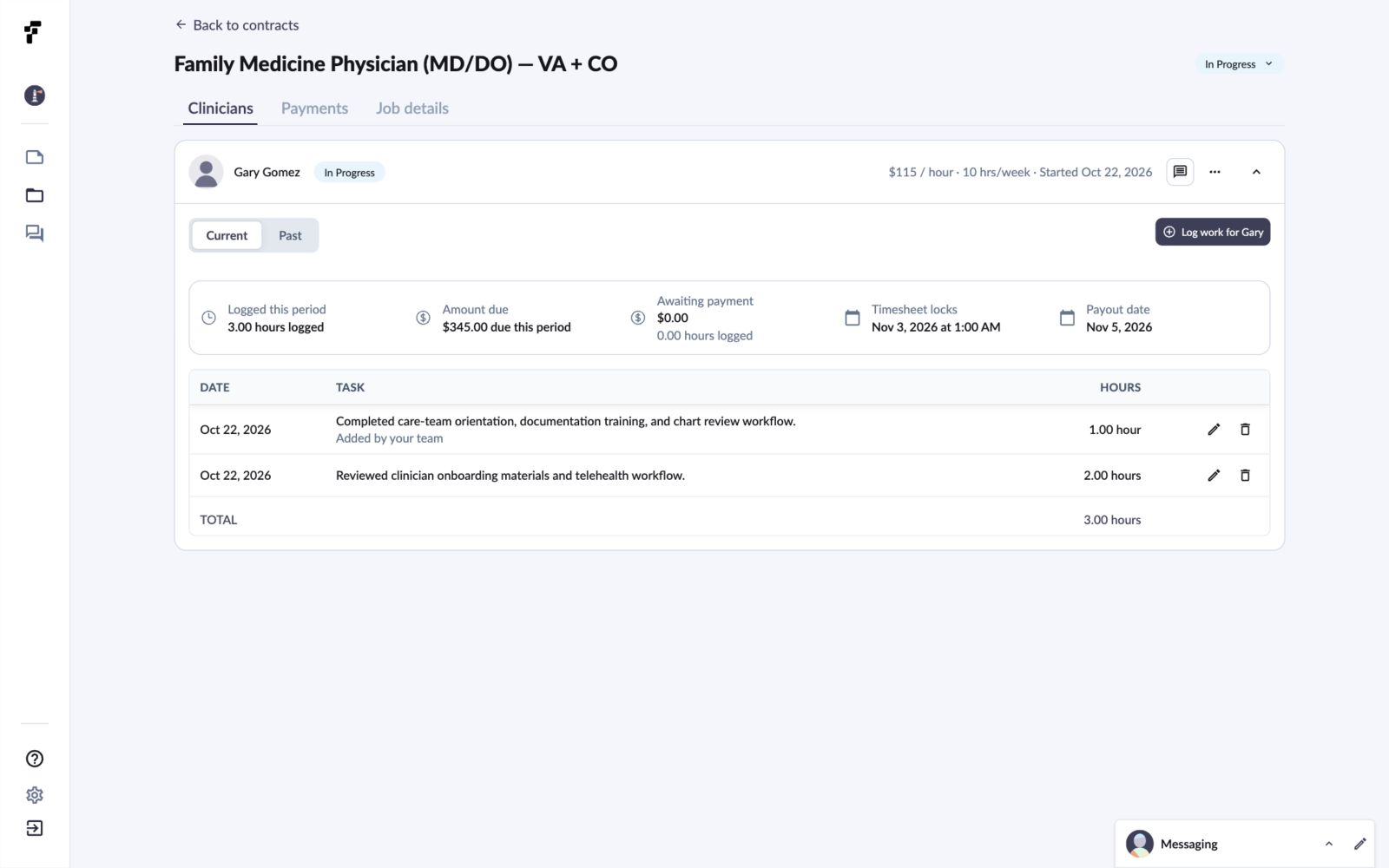
Open the engagement from **Contracts** and select **Clinicians**. The clinician's **Current** tab shows saved entries, hours, and work dates, along with the amount due at your organization's rate.
To record work for a clinician, choose **Log work for \[name]**, enter the work date, description, and hours, then select **Save Task**. The entry appears in the clinician's table too; your view labels it **Added by your team**.
Clinician and employer-entered work
To correct an editable entry, select its pencil icon, update the description or hours, and select **Save**. The correction also appears in the clinician's work table. The work date cannot be changed after saving.
Updating a work description
## Pause and resume a contract
Open the contract's status menu at the top right and choose **Pause contract**. Both accounts show **Paused**. Existing entries remain visible, while work-entry and editing controls are unavailable.
Choose **Resume contract** from the same menu to return to **In Progress** and restore those controls.
## Timesheet deadlines and payment timing
Your organization's billing schedule determines the work period. Your contract shows the deadline in your local time as **Timesheet locks**. Review work and make corrections before invoice preparation; invoiced entries are locked.
See [Time Tracking & Pay](/policies/time-tracking-and-pay.md) for biweekly and monthly deadlines, scheduled collection dates, and editing restrictions. To change the schedule, follow [Set up billing and choose a billing schedule](/for-companies/work-billing.md).
## Common questions
Where can I change the billing schedule?
The organization owner can change **Work billing schedule** in **Manage Company**. See [Set up billing and choose a billing schedule](/for-companies/work-billing.md).
Where is older work?
Paid work appears under **Past**. Unpaid work from earlier periods appears under **Awaiting payment** when there are entries to show. A new contract may show **No past work logged**.