> For the complete documentation index, see [llms.txt](https://docs.folio.works/llms.txt). Markdown versions of documentation pages are available by appending `.md` to page URLs; this page is available as [Markdown](https://docs.folio.works/for-companies/work-billing.md).
# Set up billing and choose a billing schedule
Set up your organization's payment method before sending an offer. You can then review billing history and choose how completed clinician work is grouped for billing.
## Set up your payment method
As the organization owner, open **Payments → Set up payment method** to continue to Stripe's billing portal. Complete payment setup, keep **Use as default payment method** selected, review the displayed terms, and choose **Add payment method**.
When setup is complete, Folio returns you to **Payments** and shows **Automatic billing enabled**. Use **Update payment method** to return to Stripe later, or **View all invoices in Stripe** to open your invoice history.
Automatic billing enabled in the organization's Payments tab
## Choose a work billing schedule
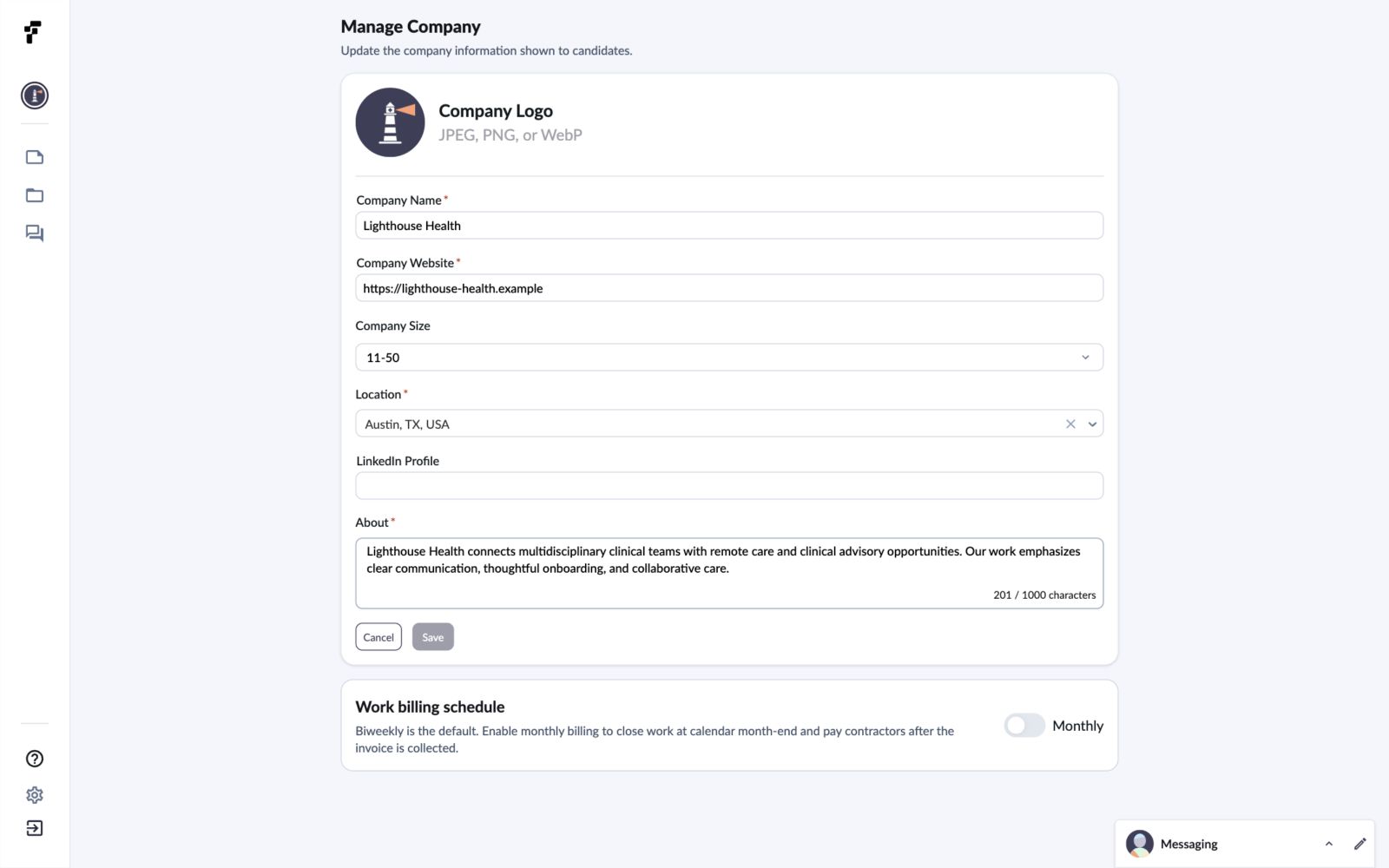
Open **Manage Company** and find **Work billing schedule**. Folio uses biweekly billing by default. Turn **Monthly** on to use calendar-month billing, or turn it off to use biweekly billing. The setting saves directly and Folio confirms the change.
Work billing schedule with Monthly off in Manage Company
## Timesheet deadlines and collection
The contract shows **Timesheet locks** in your local time and the corresponding **Payout date**. Review work before the deadline.
See [Time Tracking & Pay](/policies/time-tracking-and-pay.md) for biweekly and monthly work periods, submission deadlines, and scheduled collection dates. Clinician transfers follow successful invoice collection and completed payout setup; the date shown is not a guaranteed bank-arrival date.
## Review billing activity
Your organization's **Payments** tab contains billing history. **Payroll** shows billing periods after their work invoices are paid.
## Common questions
Why can't I create an offer yet?
Folio requires a default payment method. Complete setup from **Payments** and check for **Automatic billing enabled** before returning to the candidate.
Is Monthly part of the company-information form?
It is a separate control below that form. Changing the switch saves the work billing schedule directly.
What if the Stripe page expires?
Return to your organization's **Payments** tab and reopen **Set up payment method** to start a fresh session.