# Welcome to Folio

This is the knowledge base and support website for the Folio Talent Community. Find information here about the onboarding process, how to work and get paid through Folio, as well as your impact in making AI smarter and safer.

## For Talent

<table data-view="cards"><thead><tr><th></th><th></th><th></th><th data-hidden data-card-target data-type="content-ref"></th></tr></thead><tbody><tr><td><strong>Your Role in AI</strong></td><td>What exactly is AI training?</td><td></td><td><a href="/pages/JMwV3pIhcOCQlXmmpp1N">/pages/JMwV3pIhcOCQlXmmpp1N</a></td></tr><tr><td><strong>Getting Started</strong></td><td>Help build the future of healthcare.</td><td></td><td><a href="/pages/RVgxe9b0EuHDSpWCbO6G">/pages/RVgxe9b0EuHDSpWCbO6G</a></td></tr><tr><td><strong>Payments</strong></td><td>Setting up your payment account</td><td></td><td><a href="/pages/ZG48MrStfvkbmmYpKnAB">/pages/ZG48MrStfvkbmmYpKnAB</a></td></tr></tbody></table>

## For Companies

<table data-view="cards"><thead><tr><th></th><th></th><th></th><th data-hidden data-card-cover data-type="files"></th><th data-hidden data-card-target data-type="content-ref"></th></tr></thead><tbody><tr><td><strong>Employer</strong> <strong>Onboarding</strong></td><td>Get setup as an employer on Folio.</td><td></td><td></td><td><a href="/pages/TvOF2EKQqsz34m9SiHB5">/pages/TvOF2EKQqsz34m9SiHB5</a></td></tr><tr><td><strong>Posting a Job</strong></td><td>Post jobs in less than two minutes using AI. </td><td></td><td></td><td><a href="/pages/dyIQjEGeq4T2iyU48KLv">/pages/dyIQjEGeq4T2iyU48KLv</a></td></tr><tr><td><strong>Project Management</strong> </td><td>Manage your active job postings and contracts. </td><td></td><td></td><td><a href="/pages/CM3vrAXxrcNjIyIhqGXf">/pages/CM3vrAXxrcNjIyIhqGXf</a></td></tr></tbody></table>

#### About Folio <a href="#about-scholars-and-imerit" id="about-scholars-and-imerit"></a>

**Folio** is a company with a rich 5 year history of workforce innovation. Our story started in 2021 with building a job training and matching program for entry-level talent from underserved communities. Since then, Folio has narrowed focus on healthcare: connecting HCPs with opportunities to improve the safety and efficacy of healthcare AI. Through training, certification and matching, Folio is building the rails for the AI-training future of work.


# Selection & Onboarding

Where are you in our process? Use this page to understand what is happening and what's next

**Our Talent program is designed to offer flexible, rewarding remote work for subject matter experts around the world.**

We take care to bring people into the program who are qualified and have the experience to perform the work required at the highest level of quality. We respect and appreciate the time and care that you put in during this process.

#### Stages

{% stepper %}
{% step %}

#### Sourcing

This is the first stage, whereby you have indicated your interest in joining the Folio community by signing up at <https://app.folioworks.com/signup> or via direct contact with our recruiting team. If there are projects that may match your skills and experience, we will contact you to begin our selection process.
{% endstep %}

{% step %}

#### Onboarding

**In this stage we collect information and perform required background checks.**

During this stage, you will create your Folio profile and complete the legal and compliance requirements. To quickly create your Folio profile, just upload your resume and allow the platform to extract / convert it into a community profile. You will also be required to review work authorization, independent contractor, and BAA (if applicable) documentation. We may also require a background and / or identity check.
{% endstep %}

{% step %}

#### Training & Assessments

**This stage may include one or more online assessments, interviews or practice work to determine your skills and experience.**

Folio has a set of online learning and assessment material, designed by industry leading educators, that allows you to upskill and increase your project matching accuracy. More information on assessments can be found on the [Skills & Assessments page](/getting-started/skills-and-assessments).

Once you have completed the Core Curriculum, you are now **approved to work**.
{% endstep %}

{% step %}

#### Project Matching & Job Applications

Folio's matching algorithm will surface projects that are recommended for you based on your background, skills, credentials, and completion of assessments. Projects are viewable on the Jobs page, sorted first by Best Matches. From here, you can review and Apply to projects.

Some projects may require job-specific assessments as a part of the Application process. Completing and passing this assessment is not a guarantee for selection, but does make your application qualified.
{% endstep %}

{% step %}

#### Project Engagement

If you are Hired for a project, you'll receive follow up instructions for how to access and complete the tasks related to it. You will have an opportunity to confirm your participation beforehand.&#x20;

Please make sure you respond promptly with this confirmation request or any questions, as a delay at this stage may mean losing your spot on the project.
{% endstep %}
{% endstepper %}


# All About AI Training

If you're wondering what <mark style="color:$primary;background-color:blue;">**AI training**</mark> actually means or how your work shapes the models millions of people use every day, you're in the right place.

### What You'll Actually Be Doing

AI models are powerful pattern-recognition systems, but they don't understand the world the way humans do. They can generate text that sounds correct without knowing if it's true, helpful, or fair. That's where you come in.

As an AI trainer, you're teaching models to be more accurate, trustworthy, and aligned with human values. Your day-to-day work might include:

* Evaluating responses: Does this answer make sense? Is it factually correct? Does it follow instructions?
* Comparing outputs: Which of these responses is more clear, accurate, or helpful?
* Labeling data: Identifying what's in an image, tagging sensitive content, or categorizing text
* Providing feedback: Explaining why a response is good or poor based on provided instructions

Each decision you make teaches the model what "good" looks like. Over time, these small judgments compound into a smarter, safer AI system.

***

### Why This Work Matters

AI models excel at processing information faster than any human could, but they lack something essential: **context**. They can't naturally tell if a response is contextually accurate, culturally inappropriate, or subtly misleading. They don't know when a technically correct answer misses the point.

Example: An AI might accurately describe what's in a photo but miss cultural nuances that make the content offensive. Or it might give a factually correct answer that comes across as cold or dismissive. Your judgment catches these gaps.

Every label, ranking, or piece of feedback you provide helps the model learn. You're actively shaping how AI "thinks" and ensuring it serves people better.

***

### Your Impact

Your work ensures that AI models don't just provide accurate, useful responses, but do so in ways that are safe and aligned with human values.

You are one of the main ways human judgment enters AI systems. Every evaluation, every ranking, and every safety flag contributes to models that better serve the people using them.

Thank you for being part of this work. Let's build better AI together!

<br>

<br>

<br>


# Training Concepts

#### Supervised Learning

Teaching a model by showing it labeled examples. Like training a spam filter by feeding it thousands of emails already marked "spam" or "not spam." The model learns patterns from these examples and applies them to new data it has never seen.

{% hint style="success" %}
**Your role**: You might label training data or verify that the model's predictions match the correct labels.
{% endhint %}

***

#### Reinforcement Learning (RLHF)

Training through trial and error, using rewards and penalties instead of fixed labels. Think of teaching a dog with treats and corrections. The model tries different approaches, gets feedback on what works, and gradually improves.

Example: An AI learning to play a game gets points for good moves and loses points for mistakes. Over thousands of rounds, it figures out winning strategies.

{% hint style="success" %}
**Your role**: You might rank different model responses to teach it which ones lead to better outcomes.
{% endhint %}

***

#### Direct Preference Optimization (DPO)

Instead of saying "this answer is right, that one is wrong," you're saying "I prefer this response over that one." The model learns to match human preferences, making it better at producing helpful, appropriate answers.

Example: You see two customer support responses to the same question: one clear and polite, one vague and wordy. You choose the better one. The model learns from thousands of these preferences.

{% hint style="success" %}
**Your role**: You might compare model outputs and select which one is more helpful, accurate, or appropriate.
{% endhint %}

***

#### Human-in-the-Loop (HITL)

Keeping humans actively involved in critical decisions instead of letting AI run fully automated. This could involve labeling data, reviewing model outputs, or approving high-stakes decisions.

Why it matters: Content moderators double-check AI flags. Doctors review AI-suggested diagnoses. Support agents correct AI-drafted replies. The AI learns while humans handle edge cases and sensitive decisions.

{% hint style="success" %}
**Your role**: You're the safety net: catching mistakes, providing corrections, and ensuring quality control.
{% endhint %}

***

#### Process Supervision

Evaluating how an AI reaches an answer, not just whether the final answer is correct. Instead of only rewarding correct outputs, you check the reasoning steps and give feedback on whether the process follows good practices.

Example: An AI might reach the right conclusion but skip important safety checks. Process supervision teaches models to follow proper workflows, not just guess answers that seem correct.

{% hint style="success" %}
**Your role**: You might review step-by-step reasoning and flag when the model takes shortcuts or uses flawed logic.
{% endhint %}

***

#### Rubrics & Verifiers

Creating evaluation frameworks that define what "good" looks like, then checking if outputs meet those standards. Rubrics are detailed scoring criteria (like a grading sheet), while verifiers are systems that automatically check whether specific requirements are met.

Example: A writing rubric might score clarity (1-5), accuracy (1-5), and tone (1-5). A verifier might automatically check that a medical AI's response includes required disclaimers or that code runs without errors.

{% hint style="success" %}
**Your role**: You might develop scoring criteria, evaluate outputs against established rubrics, or verify that model responses meet specific quality standards or safety requirements.
{% endhint %}

***

#### Red-Teaming

Deliberately testing an AI's limits by trying to make it fail, produce harmful outputs, or bypass safety measures. Like ethical hackers who break into systems to find vulnerabilities before bad actors do.

Example: You might try creative prompts to see if a chatbot can be tricked into giving dangerous advice, revealing private information, or producing biased content. Finding these weaknesses helps developers build better guardrails.

{% hint style="success" %}
**Your role**: You're the adversary: probing for weaknesses, testing edge cases, and documenting ways the model can be misused or produce problematic outputs.
{% endhint %}

***

#### Adversarial Testing

Similar to red-teaming but broader—systematically creating challenging scenarios to test model robustness. This includes unusual inputs, edge cases, and real-world complexity that might confuse or break the AI.

Example: Testing a self-driving AI with rare weather conditions, confusing road signs, or unusual pedestrian behavior. Or testing a language model with ambiguous questions, contradictory instructions, or inputs from different languages mixed together.

{% hint style="success" %}
**Your role:** You might design test cases that push the model's boundaries, expose blind spots, or reveal how it handles unexpected situations.
{% endhint %}

***

#### Constitutional AI / Rule-Based Training

Teaching models to follow specific principles or rules rather than learning only from examples. The AI is given explicit guidelines (a "constitution") about what responses are acceptable and what crosses the line.

Example: Instead of just showing examples of harmful vs. helpful content, you give the model principles like "Be helpful, harmless, and honest" or "Never provide instructions for illegal activities." The model learns to evaluate its own outputs against these rules.

{% hint style="success" %}
**Your role**: You might help define the principles, test whether the model follows them consistently, or provide feedback when the model violates its guidelines.
{% endhint %}

<br>


# How AI Models Actually Work

#### The Building Blocks

At its core, a Large Language Model (LLM) is an advanced text-prediction system. It reads billions of examples of human writing and learns statistical patterns, like which words tend to follow other words, how sentences are structured, and how conversations flow.

Before training, all that text needs to be processed:

1. Data collection: Gathering text from websites, books, documentation, code
2. Cleaning: Removing spam, duplicates, low-quality content
3. Tokenization: Breaking text into small chunks (words, subwords, characters)
4. Encoding: Converting tokens into numbers the model can process

***

#### How Models Process Information

Inside an LLM is something called a transformer: think of it as the model's brain. It breaks sentences into tokens and constantly asks: which earlier words matter most for predicting what comes next?

Over time, the model learns patterns in sentence structure, tone, and basic reasoning. Its parameters (internal settings) control how much attention it pays to different patterns.

{% hint style="info" %}
In AI training, you won't redesign the model's architecture, but your feedback shapes what patterns it learns. When a model loses track of earlier conversation context, gives vague answers, or misses subtle instructions, you catch these failures and teach it to do better.<br>
{% endhint %}


# The Training Pipeline

AI training happens in stages, each building on the last.

{% stepper %}
{% step %}

### Pretraining

The model learns how to produce responses through self-supervised learning: predicting missing or next words in billions of text examples. This teaches the model basic grammar, vocabulary, and how sentences fit together.

Who does this: Usually the companies creating the models. You might occasionally help by labeling or rating raw training data.
{% endstep %}

{% step %}

### Fine Tuning

Now the model learns how to respond appropriately. It's given realistic prompts like user questions, coding tasks, and support tickets. These are used as training for the model to produce ideal outputs, not just statistically likely ones.

Reinforcement Learning from Human Feedback (RLHF) is crucial here. Early models are often confident but wrong. Human feedback teaches them what answers are actually helpful, safe, and accurate.

{% hint style="info" %}
This is where you’ll spend most of your time. You might evaluate responses, rank competing answers, flag misleading or biased content, and provide feedback that nudges the model toward higher quality.
{% endhint %}
{% endstep %}

{% step %}

### Continuous Improvement

Even after deployment, models encounter new edge cases, confusing prompts, or safety issues. These become new training examples for ongoing improvement.

You might help develop challenging test cases, evaluate how models handle tricky situations, and label results for additional training.

Training isn't a one-time event: it's a continuous loop of data, feedback, and improved responses.
{% endstep %}
{% endstepper %}


# Safety: Your Most Important Responsibility

AI models are powerful but don't naturally understand consequences. Without proper training, they can generate harmful, biased, or misleading content.

You translate high-level safety concerns into specific examples the model can learn from.

#### Content Safety

* Filter risky content – Flag harassment, unsafe material, or content that violates policies
* Tag sensitive topics – Mark health, finance, or legal content for stricter handling
* Check for bias – Remove responses that stereotype or discriminate against groups

#### Response Safety

* Label safe answers – Judge which responses are acceptable for sensitive prompts
* Create safety patterns – Refine how models handle requests for harmful information
* Apply safety rubrics – Follow guidelines that define acceptable vs. blocked outputs

#### Red-Teaming

Adversarial testing where you intentionally try to break the model's safety rules.

* Write challenging prompts – Design tricky requests to test safety boundaries
* Document failures – Flag any harmful outputs the model produces
* Turn failures into training – Use what breaks to make the model safer

<br>


# Advanced Methodologies

As AI training evolves, several cutting-edge approaches are becoming standard practice:

#### Constitutional AI (CAI)

Instead of providing feedback on every single response, you help define a "constitution": a set of ethical principles the model should follow. The AI then uses these principles to critique and improve its own responses.

**Why it matters**: Allows models to self-improve using clearly stated values like "avoid harmful content" or "be respectful," reducing the need for human review on every output while maintaining ethical alignment.

{% hint style="success" %}
**Your role**: You might help craft constitutional principles, evaluate whether the model follows them, or test the constitution by trying to find cases where it breaks down.
{% endhint %}

***

#### RLAIF (Reinforcement Learning from AI Feedback)

Similar to RLHF, but uses AI models to generate some of the preference rankings instead of humans doing all of it. This doesn't eliminate human input, but rather amplifies it by having AI help with simpler comparisons while humans focus on complex, nuanced cases.

Why it's useful: Makes training more scalable and cost-effective. One piece of human feedback can cost $1-10+, while AI feedback costs less than $0.01. However, human judgment remains essential for pushing the frontier and handling subjective, culturally sensitive, or novel situations.

{% hint style="success" %}
**Your role**: You focus on the hard cases (e.g. where human judgment is irreplaceable), while AI handles more straightforward ones.
{% endhint %}

***

#### Rubric-Based Evaluation

Instead of simply saying "Response A is better than Response B," you evaluate responses against specific criteria or rubrics. For example, rating a response on helpfulness (1-7), accuracy (1-7), and safety (1-7) separately.

Why it matters: Provides much richer training data. The model learns why something is good or bad, not just that it's better or worse.

{% hint style="success" %}
**Your role**: You might evaluate responses across multiple dimensions, often using detailed rubrics that break down what makes a response high-quality.
{% endhint %}

***

#### Evaluation Environments (Evals)

This involves creating test scenarios and benchmarks to measure if models are actually improving in specific capabilities like coding, medical reasoning, or following complex instructions.

Why they're critical: Training is expensive. Before investing in more training, teams need to know if the model is actually getting better at the things that matter.

{% hint style="success" %}
**Your role**: You might help design evaluation tasks, verify correct answers, or test whether existing benchmarks actually measure what they claim to measure.
{% endhint %}

***

#### Collective Intelligence Approaches

Combining judgments from multiple evaluators to achieve better accuracy than any single expert.&#x20;

Example: In medical AI, research shows that aggregating opinions from multiple medical students or residents can outperform individual board-certified physicians on data labeling tasks.

{% hint style="success" %}
**Your role**: You're part of a team where your individual judgment combines with others' to create a stronger, more reliable signal for training.
{% endhint %}

<br>


# Additional Resources

* [When Humans Are Needed](https://humandata.mercor.com/background-reading/when-humans-are-needed) – Why human judgment remains essential in AI training
* [Constitutional AI Paper](https://www.anthropic.com/research/constitutional-ai-harmlessness-from-ai-feedback) – Anthropic's research on training models with ethical principles
* [Mercor's Era of Evals](https://www.mercor.com/blog/welcome-to-the-era-of-evals/) – The future of AI evaluation environments


# Create your Account

Creating a talent account on Folio.

### Create your account <a href="#create-your-account" id="create-your-account"></a>

{% stepper %}
{% step %}

### Open the sign-up page

Please visit [app.folioworks.com/signup](https://app.folioworks.com/signup). You will find fields designated for your email address, along with a Login button, a Sign Up option, and an option to Continue with Google.
{% endstep %}

{% step %}

### Enter your email

Enter your email address, a memorable password, and select ‘Sign Up’. A verification email will be dispatched to that address.
{% endstep %}

{% step %}

### Verify from your inbox

Please open the verification email and adhere to the provided instructions to complete the registration process. If the message is not visible in your inbox, kindly check your spam or junk folder, or consider resending the email
{% endstep %}

{% step %}

### Select your user type \[Expert]

<figure><img src="/files/oLxNGYWGT2jBK0W0AZqb" alt=""><figcaption></figcaption></figure>
{% endstep %}

{% step %}

### Follow the signup flow

Complete signup steps such as adding first and last name, location of residence, and uploading a copy of your resume. We'll extract key details of your resume automatically to build your profile. If you don't have a resume, check the box to skip for now.
{% endstep %}

{% step %}

### You're now ready to view projects!

{% endstep %}
{% endstepper %}


# Update your Profile

A comprehensive and professional guide to updating and maintaining your Folio profile.

{% hint style="success" %}
Your profile represents the manner in which you showcase your skills to teams and clients on Folio. A comprehensive and precise profile expedites the matching process and enhances your likelihood of receiving an invitation to an interview.
{% endhint %}

If you're trying to apply to a job and the Apply button is inactive, don't worry, it's an easy fix! You must have a complete profile before you can apply to jobs on Folio. This ensures employers are getting the full picture of who you are and what you're capable of.

Head to your profile from the sidebar. You will see a red banner at the top of your profile page with an incomplete status like below, outlining what sections are missing:

Within your profile, look for a red exclamation point next to the section that needs some work. Sections that may be missing could include:

| Resume     | Upload your resume                                                                                                               |
| ---------- | -------------------------------------------------------------------------------------------------------------------------------- |
| About      | Write a brief intro about yourself: who are you and what are your professional aspirations                                       |
| Education  | Add your schooling: areas of study and graduation dates                                                                          |
| Links      | Add your LinkedIn as a baseline, and any skill-specific places you showcase your work (GitHub, a portfolio, a project you built) |
| Skills     | What skills are you comfortable using in a job?                                                                                  |
| Industries | What industries are you interested in?                                                                                           |

After adding these sections into your profile, your profile photo will update to show a green "Available" banner, which indicates that you are ready to apply to opportunities! Head to the Jobs tab on the sidebar to find opportunities that match your interests.

<figure><img src="/files/Bj5bBUzSB1IxCrePesPq" alt=""><figcaption></figcaption></figure>


# ID Verification

All Experts must complete identity verification, handled securely through Stripe, before beginning work.

#### **Providing Proof of Identity and Address**

During our onboarding process, we require you to prove your identity. This helps us verify your details and ensure compliance with local regulations, as well as ensuring you are who you say you are. Below, we explain the types of documents we accept and how to submit them.

Failure to comply with this process, or providing fake documents will disqualify you from the talent community.

**Proof of Identity**

Your proof of identity must be a government-issued document that includes your full name and photograph. Common examples include:

* National ID card
* Passport
* Driver’s license
* Residence permit

If your country does not issue these specific documents, an equivalent government-issued ID is also acceptable. The document must be valid and clearly show your full name, photo, and date of birth.

**How to Submit Documents**

ID check is often handled during the onboarding flow. To complete the check outside of the onboarding flow, navigate to the Settings tab and select [Verify My Identity](https://app.folioworks.com/settings?tab=account).

**How We Handle Your Information Safely**

Folio works with Stripe to securely handle ID verification. Your information is never stored by Folio.&#x20;


# Skills & Assessments

#### What do we mean by "skills"?

Our community is comprised of experts across a variety of levels of experience, languages and specialities. We use the general word 'skills' to refer to these capabilities. When we look for Talent to work on specific projects, we search for those with the right mixture of skills, experience and geographic location.

#### How do we assess skills?

**In assessing skills, we do everything we can to respect your expertise, time and effort, while ensuring we reach objectively high standards of quality in every project we do.**

The way we assess skills varies by the level of experience and the type of skill. For example, to evaluate speaking ability in French, we may request you to record your voice.

We regularly use the following assessment methods:

* Review of a CV/Resumé
* A brief phone interview
* A multiple-choice or other automated test
* A test requiring a human review
* A test on a third-party platform
* An open-ended prompt
* Practice work using one of our tools, such as Foundry

#### Folio Learn

Most of our assessments are performed on Folio under the Learn tab. When it is time for you to take a test, you will be provided a link to log into iMerit One and complete the assessment.

#### When might I be assessed?

During your onboarding process, depending on the type of project you are applying for, we might provide one of the above types of test for you to complete. The result of the test will determine your eligibility for this project. For future projects, you may have to take an additional test.

#### How long do assessments take?

Depending on the skill we are assessing you for, the test may take from a few minutes to an hour.

#### Am I paid for taking assessments?

Unless a Project Manager specifically informs you otherwise, there is no compensation for assessments.

Regarding the result of a test you have taken: In almost all cases, the decision of our Skills team is final, and we do not enter into dialogue about the results of any specific test.


# Applying to Jobs

Folio has exciting job opportunities that might not be available anywhere else! In order to apply to them, you'll need to make sure your profile is complete, and it's best practice to include a profile photo, a project, and complete skills assessments.

When you're ready to apply, head to the Discover page to see available opportunities. You can search for areas of interest or a specific company name. After you hit the Apply button, the employer will be notified and will review your application on their own time.

### Checking Application Status

To check your application status, from the left sidebar click on Jobs > Applications. You’ll be able to see the status of each job application, access the company details, and review the job description, goals, and skills required.

![](//d33v4339jhl8k0.cloudfront.net/docs/assets/6762753dff440c4ab171ea2a/images/680f091caec6770aa9c7f4c7/file-EFGf2XLwB8.png)

When you apply to a job, there are three main stages:

**Applied:** Your application has been successfully submitted and is in review by the company / hiring manager.

**Interviewing:** You've been invited to interview with the company.

**Hired:** You've been hired by the company for the role and a contract has been created for you to review deliverables, onboarding materials, and log your tasks.

**Rejected:** Unfortunately, the company did not think you were a good fit for the role.

### What happens after I apply?

Keep an eye out for an email with status updates! Make sure emails from <projects@folio.works> aren't being blocked by spam filters. If you think they might be, we recommend logging in at least twice a week to check your status.

These jobs move quickly, and you should, too! If you're serious about your application, you should respond to emails from Folio or from the employer as quickly as possible.


# Payments

How to set up and link your bank account for seamless payments

{% hint style="info" %}
Stripe is Folio's primary payment processing method for ongoing work. Follow the steps below to connect your account.
{% endhint %}

{% stepper %}
{% step %}

### Start the setup from your settings

Go to the [Folio Settings Page](https://app.folioworks.com/settings?tab=account), select the Payment tab, then select the "Connect to Stripe" button.

<figure><img src="/files/SdzfqgdIykPV7C8aLFcw" alt=""><figcaption></figcaption></figure>

{% endstep %}

{% step %}

### Create a Stripe account

Continue by creating or logging into your Stripe account.

<figure><img src="/files/pqarC929DFNkxs6g7YW6" alt=""><figcaption></figcaption></figure>

{% endstep %}

{% step %}

### Complete the Stripe setup flow

Please ensure you adhere to Stripe’s guidelines meticulously to complete your setup successfully. For further detailed information, Stripe offers additional documentation accessible here: support.stripe.com/express
{% endstep %}
{% endstepper %}

### About your Stripe Express account <a href="#about-your-stripe-express-account" id="about-your-stripe-express-account"></a>

* Stripe exclusively disburses to **bank accounts;** debit cards are not supported.
* Two-factor authentication is mandatory via SMS.
* Payouts can be monitored directly through your [Stripe dashboard](https://connect.stripe.com/).

### FAQ <a href="#faq" id="faq"></a>

<details open>

<summary>I am an individual, and the form asks for business details. What do I enter?</summary>

Specific fields marked with • are optional. Should a field be irrelevant to your circumstances, you are permitted to leave it blank.

</details>

<details open>

<summary>Can I get paid in USD if I am in another country?</summary>

No. Although Stripe supports USD payouts in select regions, this feature requires both Folio's platform account and your connected account to be registered in the same region. Since Folio's platform is based in the United States, multi-currency settlement (including USD payouts outside the U.S.) is not currently supported. Payouts can only be processed in your local currency.

</details>

<details open>

<summary>I already have a Stripe account. Can I use it with Folio?</summary>

No. You’ll need to create and connect a new Stripe Connect account during payment setup in Folio.

</details>

<details open>

<summary>Can I reset the Stripe account linked to Folio?</summary>

Yes. Please go to your Earnings dashboard, click the Stripe option in the top-right corner, and select Reset Payment Setup.Note: Performing this action will permanently delete your previous Stripe data and transaction history associated with the existing Stripe account. Please do not perform this when you have a payment in transit or a balance on your existing Stripe account.&#x20;

</details>

<details open>

<summary>I want to log into Stripe but do not know my password.</summary>

You may reset your password on Stripe’s login page. Upon resetting, you will be able to access the Stripe Dashboard as usual.

</details>

<details open>

<summary>How can I change the email address on my Stripe account?</summary>

Folio cannot modify any details in your Stripe account. Please get in touch with Stripe Support directly to update your email address.

</details>

<details open>

<summary>How can I change my bank account for payouts?</summary>

You can modify or update your linked bank account at any time through your Stripe Connect Dashboard.Go to Settings > Payouts and update your external bank account details there.

</details>

<details open>

<summary>How do I delete the bank info I gave when accepting my offer?</summary>

You can use the “Reset Stripe” option on your Earnings page to delete your connected Stripe account permanently. Note: This action will permanently erase all linked Stripe data and transaction history associated with your Folio account. **Please do not perform this when you have a payment in transit or a balance on your existing Stripe account.**

</details>

<details open>

<summary>Stripe is asking for ID verification, but it keeps failing. What do I do?</summary>

This situation typically occurs when an individual’s personal name is entered as the company name, resulting in a discrepancy. Please contact Stripe Support to clarify the issue; they can conduct a manual review and verify your identity.

</details>

<details open>

<summary>Stripe’s documentation says my country isn’t supported, but Folio's documentation says it is. Why is there a difference?</summary>

Stripe’s public site refers to standalone accounts. Folio uses Stripe Connect, a version designed for platforms that support more regions. If your country appears in our [supported countries list](https://talent.docs.mercor.com/policies/supported-countries#stripe-supported-countries), you can set up your Stripe Connect account directly from your Earnings dashboard.

</details>

<details open>

<summary>My country is not supported. Can I use someone else’s bank account in the supported country?</summary>

No. For compliance reasons, we can only send payouts to a **bank account in your own name**, located in a **supported country**.We are unable to send payments to accounts belonging to relatives, friends, or companies you do not own.

</details>

<details open>

<summary>Stripe says my account is on hold or payouts are paused. What should I do?</summary>

Holds are placed directly by Stripe and cannot be removed by Folio. Please log in to your Stripe dashboard, complete all pending actions, and contact Stripe Support if the hold remains. Once Stripe clears your account, payouts will resume automatically.

</details>

<details open>

<summary>Can Folio pause, delay, or consolidate my payouts (e.g., monthly instead of weekly)?</summary>

No. Folio payouts are processed **automatically each week**, and we cannot manually hold, delay, or batch them.

</details>

<details open>

<summary>Why can’t I add a foreign (e.g., USD) bank account to my Stripe profile?</summary>

Stripe only supports **local bank accounts** in the same country as your Stripe Express region. For example, a Canadian Stripe account cannot be linked to a U.S. bank account. You must add a bank account located in your Stripe region and supporting the currency of your Stripe region.

</details>

<details open>

<summary>My bank says they cannot locate the payout without a reference number. Who provides this?</summary>

Stripe provides a **payout trace ID** once the payout is marked “Paid.” You can find this in your Stripe dashboard under Payout Details.

</details>

<details open>

<summary>Can Folio speed up a Stripe or Wise payout that is taking long?</summary>

Unfortunately, no - once Stripe processes the payout, the timeline depends entirely on the banks involved.

</details>

<details open>

<summary>I updated my bank details after payouts were sent. Will those payouts go to my new bank?</summary>

No. Payouts already initiated will continue to be sent to your old bank account. All future payouts will be made to the new bank account.

</details>

<details open>

<summary>My offer rate doesn’t specify any currency/symbol. What currency will I be paid in?</summary>

Folio contract rates are in USD. Stripe/Wise will automatically convert your USD earnings into your local currency during payout.

</details>

<details open>

<summary>Stripe is asking for my SSN (or any other ID/document) and bank account details to complete my setup. Can I proceed without providing these?</summary>

No. These identity verification requirements cannot be bypassed. Stripe requires this information — including SSN for U.S. users — to comply with financial regulations and securely process payouts. Without completing this verification, you won’t be able to proceed with your payout setup.

</details>

<details open>

<summary>Stripe Is Asking for Banking Details That Don’t Exist in My Country (Sort Code, Routing Number, etc.). What can be done?</summary>

Stripe determines required banking fields based on the country selected during payout setup, not Folio. Even if a term like *sort code*, *routing number*, or *bank code* isn’t commonly used in your country, Stripe still requires a local bank identifier for payouts.The field name shown in Stripe may be generic, but it maps to a country-specific banking code (such as a bank code or branch identifier) behind the scenes. What to do: Contact your bank and ask for the exact value Stripe expects. These details are often not visible in online banking apps, so speaking with the bank is usually necessary.

</details>

<details open>

<summary>Can Folio Change or Bypass Stripe’s Banking Requirements?</summary>

No. Folio cannot change, bypass, or override Stripe’s banking requirements. Stripe controls:

* Which banking fields are required
* How those fields are labeled
* Whether the bank details are valid

If you’ve confirmed the details with your bank and Stripe still rejects them, the next step is to contact Stripe Support directly from your Stripe dashboard, including the error message and your bank’s confirmation.

</details>


# Email Alias

Your Folio Email Alias is a private relay email address assigned to your account. It lets you interact with employers and external platforms without exposing your personal email address.

## What Is the Folio Email Alias?

When you join Folio, you are assigned a unique relay address in the format:

```
folio[randomnumberstring]@experts.folioworks.com
```

This address acts as a proxy. Any email sent to it is automatically forwarded to your registered Folio account email. The sender never sees your personal address.

<figure><img src="/files/rEpayvpwp5uooGxYAWKg" alt=""><figcaption></figcaption></figure>

## Why Use It?

* **Privacy** — Keep your personal email off client platforms when working on external jobs, as well as on job boards, external tools, and employer communications
* **Consistency** — Use one professional address across all Folio-related activity
* **Control** — All forwarded messages arrive in your existing inbox — no new account to check

## Finding Your Alias

1. Go to **Settings** in the left sidebar.
2. Open the **Account** tab.
3. Your alias is displayed in the **Folio Email Alias** section.

## Testing the Relay

To confirm your alias is working correctly:

1. In the **Folio Email Alias** section, click **Test Email Relay**.
2. A test message will be sent to your alias and forwarded to your registered email.
3. Check your inbox to verify delivery.

If the test email does not arrive, check your spam folder. If the issue persists, contact Folio support via the **Help** section.

## Using Your Alias on External Platforms

When signing up for third-party platforms, tools, or services related to your Folio work, enter your Folio Email Alias instead of your personal email. Replies and notifications from those platforms will be forwarded directly to you.


# getting-started


# create your account

To access Folio projects, you need a free Expert account. Account creation takes under two minutes.

{% stepper %}
{% step %}

### Go to the signup page

Go to [app.folio.works/signup](https://app.folio.works/signup).
{% endstep %}

{% step %}

### Enter your details

Enter your email address and create a password.
{% endstep %}

{% step %}

### Verify your email

Check your inbox and click the verification link to confirm your email.
{% endstep %}

{% step %}

### Choose an account type

When prompted to select an account type, choose **Expert**.

You will then be taken directly into the onboarding wizard to complete your profile.
{% endstep %}
{% endstepper %}

## Next Step

Once your account is created, proceed to [Complete Your Profile](broken://pages/6b4ab00809710d05cc48f967d486531598cee3be) to finish setting up and become eligible for job matching.


# complete your profile

After creating your account, Folio guides you through a five-step onboarding wizard. Completing all steps is required before you can apply to projects.

{% stepper %}
{% step %}

### Step 1: Upload Resume / CV

Upload your most recent resume or CV in PDF format (max 2MB).

**Why this matters:** Folio automatically parses your CV to pre-fill your name, location, education, work experience, and skills. This saves time and reduces manual data entry.

* Accepted format: **PDF only**, 2MB maximum
* If you do not have a resume, check **"I don't have a resume"** to skip this step and enter your details manually
  {% endstep %}

{% step %}

### Step 2: Personal Information

Confirm or enter your basic contact details.

Required fields:

* First Name
* Last Name
* Location of Residence
* Phone Number

If you uploaded a CV in Step 1, your name and location will be auto-populated. Review and correct them if needed.
{% endstep %}

{% step %}

### Step 3: Education & Work Experience

Add your academic background, work history, skills, and languages.

**Education fields:**

* University (required)
* Degree (required)
* Start Year / Graduation Year
* Major
* GPA

**Work Experience fields:**

* Company (required)
* Title (required)
* Start Year / End Year
* Description

**Skills & Tools:** Add relevant clinical and technical skills as tags. Skills are a key factor hiring managers use when evaluating candidates.

**Languages:** Add languages you are proficient in.

If you uploaded a CV, education, work experience, and skills will be auto-populated. Review each section for accuracy and add any missing information.
{% endstep %}

{% step %}

### Step 4: Verify Your Identity

Provide one of the following to verify your identity and credentials. Only one option is required.

| Verification Type                   | Who It Is For                                                    |
| ----------------------------------- | ---------------------------------------------------------------- |
| **NPI Number**                      | Licensed physicians and other NPI-eligible clinicians            |
| **LinkedIn URL**                    | All professionals                                                |
| **University Email**                | Students (sends a verification email to your university address) |
| **Work ID or Professional License** | Anyone with a valid employer badge or professional license card  |

> **Note:** Headshots and selfies are not accepted for Work ID / Professional License uploads. Submit only a photo of the badge or license document itself.

You can also complete or update verification later from **Settings > Verification**. See [Identity Verification](broken://pages/57039327c8c5b302f9f9f516225942203aff2161) for full details.
{% endstep %}

{% step %}

### Step 5: Finish & Explore Jobs

Click **Finish & Explore Jobs** to complete onboarding and access the full platform.

You will land on the Jobs page where you can browse and apply to available projects.
{% endstep %}
{% endstepper %}

## Next Steps

* [Update Your Profile](broken://pages/10d8e951e9edf6e253867b3f7f32baf8c87b97ea) — Add medical specialties, a bio, projects, and links to strengthen your profile.
* [Identity Verification](broken://pages/57039327c8c5b302f9f9f516225942203aff2161) — Learn more about verification options and how to check your status.
* [Applying to Jobs](broken://pages/3a15206324e9300b78df99c05f8bcb088beaa0c7) — Start applying to projects.


# update your profile

Your profile is visible to hiring managers reviewing your applications. A complete, accurate profile improves your match quality and increases your chances of being selected for projects.

Access your profile at any time from the left sidebar by clicking your name or the profile icon.

## Profile Sections

### Medical Specialties

Add your clinical specialties (e.g., Internal Medicine, Radiology, Pediatrics). This is the primary signal used to match you to specialty-specific AI projects.

### Resume

Upload or replace your CV/resume (PDF, max 2MB). When you upload a resume, Folio can auto-populate your education, work experience, and skills sections.

### Education

List your academic credentials — degree, institution, field of study, and graduation year. Multiple entries are supported.

### Clinical Experience

Add your professional roles and clinical positions. Include your title, employer, dates, and a brief description of your responsibilities.

### Skills & Tools

Tag the clinical, technical, and software skills relevant to your work. Hiring managers filter candidates by skills, so keep this section current and specific.

### Projects

Add notable projects you have contributed to — research, quality improvement, AI/tech, or clinical initiatives. Include a title, description, and any relevant links.

### About / Bio

Write a brief professional summary. This is freeform text that gives hiring managers context beyond your CV. Keep it concise and focused on your expertise and interests.

### Languages

List the languages you speak and your proficiency level.

### Links

Add your LinkedIn profile URL and any other relevant professional links (personal website, research profiles, publications, etc.).

## Profile Completeness and Job Matching

Folio uses your profile data — particularly your specialties, skills, education, and experience — to surface the most relevant jobs via the **Best Match** filter on the Jobs page. Incomplete profiles receive fewer targeted matches.

**To maximize your match quality:**

* Add at least one medical specialty
* Keep your skills and work experience current
* Upload a recent resume so Folio can verify your background

## Availability Status

At the top of your profile, you can set your availability status using the **AVAILABLE** dropdown. Update this when your availability changes to help Folio route the right opportunities to you.


# README

This section walks you through everything you need to do to get up and running on Folio — from creating your account to applying for your first project.

***

## In This Section

1. [Create Your Account](broken://pages/9473953464f45049938997296948a933f9c77c0b) — Sign up and select your account type.
2. [Complete Your Profile](broken://pages/6b4ab00809710d05cc48f967d486531598cee3be) — Walk through the onboarding wizard to build your profile.
3. [Update Your Profile](broken://pages/10d8e951e9edf6e253867b3f7f32baf8c87b97ea) — Keep your profile current and maximize your match quality.
4. [Identity Verification](broken://pages/57039327c8c5b302f9f9f516225942203aff2161) — Verify your credentials to unlock full platform access.
5. [Applying to Jobs](broken://pages/3a15206324e9300b78df99c05f8bcb088beaa0c7) — Find and apply to projects on the Explore Jobs page.
6. [Payments](broken://pages/1b539132c78bf66152df5d98f010bd4cc3d85f52) — Connect your Stripe account to receive earnings.

***

Follow the steps in order if you are new to Folio. If you need to revisit a specific topic, use the links above to jump directly to that section.


# identity verification

Folio requires identity verification to confirm that Experts are the licensed professionals and students they represent themselves to be. Verification builds trust with hiring managers and unlocks full platform access.

You can verify your identity during onboarding (Step 4) or at any time from **Settings > Verification**.

## Verification Options

Only **one** verification method is required, though you may complete more than one.

### Identity Verification (Stripe)

Folio uses Stripe's identity verification system to confirm your identity via a government-issued ID. Click **Verify My Identity** to begin the Stripe-guided flow.

* Best for: All Experts who want a verified identity badge
* Requires: Government-issued photo ID

### NPI Verification

Enter your NPI (National Provider Identifier) number and click **Verify NPI**. Folio validates the number against the NPI registry.

* Best for: Licensed physicians and other NPI-eligible healthcare providers
* Requires: Valid NPI number

### University Email Verification

Enter your university-issued email address and click **Verify Email Address**. Folio sends a verification link to that address.

* Best for: Medical and health profession students
* Requires: Active university email account

### Work ID or Professional License

Upload a photo of your employer badge or professional license document. Folio reviews the submission manually.

* Best for: Clinicians and allied health professionals without an NPI
* Accepted: Badge photos, license cards, and professional license documents
* Not accepted: Headshots, selfies, or personal photos

## Verification Status

Each verification method displays one of the following statuses in **Settings > Verification**:

| Status          | Meaning                                                                   |
| --------------- | ------------------------------------------------------------------------- |
| **Not Started** | You have not yet submitted this verification                              |
| **Pending**     | Your submission is under review                                           |
| **Verified**    | Verification is complete                                                  |
| **Failed**      | Verification could not be confirmed; review the instructions and resubmit |

## Frequently Asked Questions

<details>

<summary>Do I need to complete all verification methods?</summary>

No. Only one method is required to access full platform features.

</details>

<details>

<summary>Can I verify after completing onboarding?</summary>

Yes. Go to **Settings > Verification** at any time to submit or update your verification.

</details>

<details>

<summary>Why was my verification rejected?</summary>

For Work ID / Professional License uploads, the most common reason is submitting a photo that does not clearly show the document. Ensure the image is well-lit and the text is legible. Headshots and selfies are not accepted.

</details>


# applying to jobs

The **Explore Jobs** page is where you find and apply to available Folio projects. All projects are remote unless otherwise noted.

## Finding Jobs

Navigate to **Jobs** in the left sidebar to open the Explore Jobs page.

### Search

Use the search bar at the top to search by job title, specialty, or keyword.

### Filters

| Filter         | Description                                                                                   |
| -------------- | --------------------------------------------------------------------------------------------- |
| **Folio Jobs** | Shows all currently available projects on the platform                                        |
| **Best Match** | Shows projects most relevant to your profile, based on your specialty, skills, and experience |

Job cards display the job title, hourly rate, and estimated hours per week — giving you a quick overview before opening the full detail view.

## Job Detail View

Click any job card to open the full job detail panel.

The detail panel includes:

* **Job title** and company
* **Hourly rate**
* **Hours per week**
* **Openings** (e.g., 1 of 7 slots filled)
* **Location** (typically Remote)
* **Start date**
* **Full description** — project background, responsibilities, and requirements
* **Project timeline** — kickoff date, estimated end date, and total estimated hours
* **Skills tags** — required skills and tools

## Applying

{% stepper %}
{% step %}
Open the job detail panel for the role you want to apply to.
{% endstep %}

{% step %}
Click **Apply Now**.
{% endstep %}

{% step %}
A confirmation dialog will appear: **"Application Submitted"**

> "Thank you for applying! We will review all applications and will reach out if you've been selected to join the project."
> {% endstep %}

{% step %}
Click **Explore Jobs** to return to the job board, or close the panel to continue browsing.

Applications are one-click — no cover letter or additional form is required.
{% endstep %}
{% endstepper %}

## Checking Your Application Status

After applying, you can track your application status from the **Home** dashboard.

{% stepper %}
{% step %}
Click **Home** in the left sidebar.
{% endstep %}

{% step %}
Select the **Applications** tab.
{% endstep %}

{% step %}
Your applications are listed in a table showing:

* Job title
* Compensation
* Status
* Company
* Tasks (if any action is required from you)

Common statuses include **Applied**, **Under Review**, **Selected**, and **Not Selected**. You will also receive an email notification if your application status changes.
{% endstep %}
{% endstepper %}


# payments

Folio processes all Expert payments through **Stripe**. You must connect a Stripe account before you can receive payment for completed work.

## Setting Up Payments

1. Go to **Settings** in the left sidebar.
2. Select the **Payment** tab.
3. Click **Connect to Stripe**.

Stripe will guide you through the account setup process. You will need to provide standard identity and banking information to complete the connection.

> **Stripe Recipient Agreement:** By registering your Stripe account through Folio, you agree to the [Stripe Recipient Agreement](https://stripe.com/legal/connect-account/recipient). Review this agreement before proceeding.

## Important Notes

* Payment setup is required before Folio can disburse any earnings.
* You can connect your Stripe account at any time — you do not need to wait until you are hired for a project.
* For detailed information on payment schedules, rates, and policies, see the [Policies & Information](file:///5311092/policies/README.md) section.

## Need Help?

If you encounter issues connecting your Stripe account, contact Folio support through the in-app **Help** menu.


# Folio Platform

Folio's platform gives healthcare professionals everything they need to find AI training opportunities, manage their work, and get paid — all in one place.

After completing onboarding, you'll have access to the full platform:

| Feature                                                                      | Description                                                     |
| ---------------------------------------------------------------------------- | --------------------------------------------------------------- |
| [Dashboard](broken://pages/7642a830b62a1591acd2c9577f7dfc29ba5e8cdf)         | View your contracts, applications, and pending tasks            |
| [Explore Jobs](broken://pages/370840c2791b3814bd5a2b2a2935836f34ec49f0)      | Search and apply to open roles                                  |
| [Job Details](broken://pages/90d7cd12a3606d5d9640de71e9dce75ba9e1d83d)       | Review role specifics before applying                           |
| [Messages](broken://pages/e309a41897ea3027e911441ed3146f487fa9de6c)          | Communicate with Folio and employers                            |
| [Referrals](broken://pages/a6f305bfde5fb742750cdccd80650d051f12145d)         | Share your referral link and earn rewards                       |
| [Settings](broken://pages/c673024643fc1c026d4d4ffc8968b29368feb17f)          | Manage your account, verifications, payments, and notifications |
| [Folio Email Alias](broken://pages/bbb59dabee13b7e8b2072310dd3c18979d917e47) | Use a private relay email to protect your personal address      |

## Navigation

The left sidebar provides access to all platform sections:

* **Jobs** — Explore open opportunities
* **Home** — Your dashboard
* **Learn** — AI training courses and certifications
* **Referrals** — Referral program
* **Messages** — Direct messaging
* **Help** — Documentation and support
* **Settings** — Account configuration


# Dashboard

The Dashboard (Home) is your central hub for tracking your activity on Folio. It surfaces pending tasks, your active contracts, submitted applications, and assessments in one view.

## Important Tasks

When you first arrive on the Dashboard, the **Important Tasks** section displays any outstanding actions required to complete your profile. These prompts guide you through steps such as adding a resume, verifying your identity, and connecting a payment method.

Once all profile tasks are complete, this section will no longer appear.

## Main panel

{% tabs %}
{% tab title="Contracts" %}
Displays all of your active and historical contracts with Folio and employer clients.

| Column           | Description                                       |
| ---------------- | ------------------------------------------------- |
| **Job**          | The role or project title                         |
| **Compensation** | Your agreed hourly rate                           |
| **Status**       | Current contract status (e.g., Active, Completed) |
| **Company**      | The hiring company or Folio                       |
| **Tasks**        | Any pending actions related to the contract       |

If you have no contracts yet, the tab shows an empty state encouraging you to explore open jobs.
{% endtab %}

{% tab title="Applications" %}
Lists every job you have applied to, along with the current review status. Use this tab to monitor where your applications stand.
{% endtab %}

{% tab title="Assessments" %}
Displays any skill assessments assigned to you as part of the hiring process. Complete assessments here when prompted.
{% endtab %}
{% endtabs %}

## Getting Started

If your Dashboard is empty, select **Explore Jobs** from the sidebar or click the prompt in the empty state to start browsing open opportunities.


# Explore Jobs

The Jobs page is where you discover and apply to open opportunities on Folio. All roles are remote and designed for healthcare professionals looking to contribute to AI training and evaluation projects.

## Searching for Jobs

Use the **search bar** at the top of the Jobs page to find roles by title, specialty, or keyword. Results update in real time as you type.

## Filters

Two filter options appear above the job grid:

| Filter         | Description                                                                                     |
| -------------- | ----------------------------------------------------------------------------------------------- |
| **Folio Jobs** | Displays all open listings posted directly by Folio                                             |
| **Best Match** | Uses AI-powered matching to surface roles most relevant to your profile, skills, and experience |

For the most relevant results, complete your profile before using Best Match.

## Job Cards

Each job is displayed as a card showing:

* **Job title** — The role name and specialty
* **Hourly rate** — Compensation in USD per hour
* **Hours per week** — Expected weekly time commitment

Click any card to open the full [Job Details](broken://pages/90d7cd12a3606d5d9640de71e9dce75ba9e1d83d) panel.

## Types of Roles

Folio lists opportunities across a wide range of healthcare backgrounds, including:

* **Physicians** — Internal medicine, family medicine, pathology, allergists/immunologists, and other specialists
* **Residents & Fellows** — Radiology residents, clinical AI fellows (primary care, critical care, medical safety)
* **Nurse Practitioners** — Board-certified NPs
* **Nurses & Nursing Students** — Clinical roles and entry-level AI training projects
* **Medical Students** — M1–M4 positions with flexible hours
* **Allied Health** — Licensed therapists, functional nutritionists, social workers
* **Other** — Accounting students, interns, and specialized evaluation roles

Roles vary in compensation and time commitment. Check individual listings for details.


# Job Details

Clicking a job card on the Jobs page opens a slide-in panel on the right side of the screen with the full details of that role.

***

## Role Information

The top of the panel displays key information at a glance:

| Field           | Description                                                                               |
| --------------- | ----------------------------------------------------------------------------------------- |
| **Title**       | The job title and specialty                                                               |
| **Company**     | The hiring organization (often Folio)                                                     |
| **Hourly Rate** | Compensation in USD per hour                                                              |
| **Hours/Week**  | Expected weekly time commitment                                                           |
| **Openings**    | Number of open slots and total capacity (e.g., 1/7 means 1 spot remaining out of 7 total) |
| **Location**    | Typically Remote                                                                          |
| **Start Date**  | Projected project start date                                                              |

***

## Job Description

The description section provides a full overview of the project, including:

* **Project details** — What the role involves and what you'll be doing
* **Project timeline** — Kickoff date, estimated end date, and total estimated hours
* **Skills tags** — Required or preferred skills for the role

Review this section carefully to confirm the role is a good fit before applying.

***

## Applying

When you're ready to apply, click the **Apply Now** button at the top of the panel.

A confirmation dialog will appear immediately after submission. Folio reviews all applications and will contact you if you are selected to join the project.

{% hint style="info" %}
**Note:** You must complete your profile before you can apply to jobs. If you haven't finished onboarding, you'll be prompted to do so first.
{% endhint %}


# Messages

The **Messages** feature allows you to communicate directly with the Folio team and employer contacts within the platform.

## Accessing Messages

The **Messages** icon appears in the left sidebar after you complete your profile. If you do not see it, finish any outstanding profile tasks shown on your [Dashboard](broken://pages/7642a830b62a1591acd2c9577f7dfc29ba5e8cdf).

## Using Messages

* Send and receive messages related to your applications, contracts, or project work
* All conversations are organized by contact or project thread
* You will receive email notifications for new messages based on your [notification settings](broken://pages/c673024643fc1c026d4d4ffc8968b29368feb17f#notifications)

## Contact

If you need to reach the Folio support team directly, you can also use the **Help** section in the sidebar or email support through your registered account.


# Settings

The Settings page lets you manage your account information, verifications, payment setup, and notification preferences. Access it from the **Settings** link at the bottom of the left sidebar.

Settings are organized into four tabs:

{% tabs %}
{% tab title="Account" %}
Manage your personal information and account-level options.

**Personal Information**

* Upload a profile photo (JPG, GIF, or PNG; 1 MB max)
* Update your first and last name

**Public Profile**

* Toggle your profile visibility on or off
* When enabled, your profile is visible to employers and other users on the platform

**Folio Email Alias**

* A private relay email address assigned to your account (format: `yourname@experts.folioworks.com`)
* Use this address instead of your personal email on external platforms
* All mail sent to this address is forwarded to your registered account email
* See [Folio Email Alias](broken://pages/bbb59dabee13b7e8b2072310dd3c18979d917e47) for full details

**Delete Account**

* Permanently and irreversibly deletes your Folio account
* This action cannot be undone
  {% endtab %}

{% tab title="Verification" %}
Manage your identity and credential verifications. Completing verifications builds trust with employers and may unlock additional platform features.

For step-by-step instructions, see the [Verification](file:///5311092/verification/README.md) section.

| Verification                        | Description                                                        |
| ----------------------------------- | ------------------------------------------------------------------ |
| **Identity**                        | Verify your identity to build trust with employers                 |
| **NPI**                             | Confirm your National Provider Identifier (for licensed providers) |
| **University Email**                | Verify your institutional email address (for students)             |
| **Work ID or Professional License** | Upload a badge or professional license document                    |
| {% endtab %}                        |                                                                    |

{% tab title="Payment" %}
Connect your Stripe account to receive payments for completed work.

1. Go to **Settings > Payment**.
2. Click **Connect to Stripe**.
3. Follow the Stripe prompts to link your account.

By connecting, you agree to the [Stripe Recipient Agreement](https://stripe.com/legal/connect-account). For more details, see the [Payments](file:///5311092/payments/README.md) section.
{% endtab %}

{% tab title="Notifications" %}
Control which email notifications Folio sends to your registered email address.

| Toggle                  | Description                                                        |
| ----------------------- | ------------------------------------------------------------------ |
| **User Onboarding**     | Emails related to onboarding to the Folio platform                 |
| **Profile Updates**     | Notifications for profile actions and changes                      |
| **Application Updates** | Status updates on your job applications                            |
| **Contract Updates**    | Changes to your active contracts                                   |
| **All Notifications**   | Master toggle to enable or disable all notification emails at once |

Toggle individual categories on or off based on your preference. Use **All Notifications** to quickly enable or disable everything.
{% endtab %}
{% endtabs %}


# Referrals

Earn rewards by referring healthcare professionals to Folio. When someone you refer signs up and gets hired, you receive **$100**.

## Stats Dashboard

The top of the Referrals page shows a summary of your referral activity:

| Stat                | Description                                      |
| ------------------- | ------------------------------------------------ |
| **Total Referrals** | Number of people who signed up using your link   |
| **Total Hired**     | Number of your referrals who were hired          |
| **Total Earned**    | Total dollar amount earned from referral payouts |

## Generating Your Referral Link

1. Navigate to **Referrals** in the left sidebar.
2. Click **Generate Referral Link**.
3. Copy the link and share it with colleagues, classmates, or peers in healthcare.

Anyone who signs up through your link is tracked as your referral.

## Tracking Referrals

The referrals table shows the status of each person you've referred:

| Column            | Description                                                     |
| ----------------- | --------------------------------------------------------------- |
| **Referred User** | Name or email of the person you referred                        |
| **Status**        | Where they are in the process (e.g., signed up, applied, hired) |
| **Payout Status** | Whether your reward has been processed                          |
| **Paid Out At**   | The date your payout was issued                                 |

## Reward Details

* **$100 per hired referral** — paid out once your referred contact is hired on Folio
* Payouts are issued to your connected Stripe account
* Set up your payment method in [Settings > Payment](broken://pages/c673024643fc1c026d4d4ffc8968b29368feb17f#payment) before your referrals are hired to ensure timely payouts


# AI & Data Usage

## AI & Data Usage

Folio uses data you provide to operate the platform, improve your job matching experience, and power AI-assisted features. This page describes what data Folio collects, how it is used, and what it is not used for.

> For full legal details, refer to the [Folio Privacy Policy](https://folioworks.com/privacy).

### Data Folio Collects

When you use Folio, we collect:

* **Resume and CV** — Uploaded during onboarding; used to auto-populate your profile
* **Profile information** — Name, location, education, work experience, skills, languages, and specialties
* **Verification data** — NPI number, university email, LinkedIn URL, or work ID/license uploads
* **Assessment results** — Outcomes from any credential or skills assessments completed on the platform
* **Usage data** — Actions taken on the platform (e.g., jobs viewed, applications submitted, courses completed)
* **Communications** — Messages sent through the Folio in-platform messaging system

### How Your Data Is Used

Folio uses your data to:

* **Match you with jobs** — Your profile, skills, and specialty are used to surface relevant opportunities and rank your application
* **Personalize recommendations** — Courses in Folio Learn and job suggestions are tailored based on your profile
* **Verify credentials** — Verification data is used to confirm your professional status
* **Administer contracts and payments** — Payment and contract data is used to process compensation
* **Improve the platform** — Aggregated usage patterns inform product development

### How AI Is Used

Folio uses AI-powered systems to:

* Parse and extract information from uploaded resumes to pre-populate your profile
* Score and rank candidate profiles against open job requirements
* Surface relevant jobs based on your specialty, experience, and activity
* Generate course recommendations within Folio Learn

### What Folio Does NOT Do

Folio does not:

* Sell your personal data to third parties
* Use your profile data for purposes unrelated to the Folio platform
* Share identifiable personal information with clients without your consent
* Use your data to train external AI models without explicit authorization

### Data Deletion

You may request deletion of your Folio account and associated data at any time.

* Navigate to **Settings** → **Account** → **Delete Account**.
* Account deletion is permanent and irreversible.
* Certain data may be retained for legal, contractual, or regulatory compliance purposes after deletion.

### Questions

For privacy-related requests or questions, contact <support@folioworks.com>.


# Background Check

## Background Check

Folio verifies the identity and credentials of healthcare professionals on the platform to maintain trust, ensure accurate matching, and meet the standards required by AI training project clients.

### What Folio Verifies

Folio's verification process may include:

* **Identity verification** — Confirming that you are who you claim to be
* **Professional credentials** — Verifying licenses, certifications, and institutional affiliations relevant to your specialty
* **NPI number** — For physicians and other eligible providers, confirming registration in the National Provider Identifier registry
* **University enrollment or email** — For students, confirming active enrollment at an accredited institution
* **Work ID or professional license** — Uploaded documentation of a current license or institutional badge

For details on the in-platform verification steps, see [Settings → Verification](file:///5311092/getting-started/settings.md).

### Verification Process

1. After completing your profile, navigate to **Settings** → **Verification**.
2. Select the verification method(s) applicable to your role (NPI, university email, work ID, or LinkedIn).
3. Submit the required information or documentation.
4. Folio reviews your submission — you will be notified once verification is complete.

> Verification status is displayed on your Folio profile and visible to project managers reviewing your application.

### Third-Party Providers

For certain verification types, Folio may use third-party identity or background check providers. Where this applies:

* Only the information necessary for verification is shared with the provider.
* Your data is handled in accordance with the provider's privacy policy and applicable law.
* Results are returned to Folio and reflected in your verification status.

### Data Privacy and Fairness

* Verification data is used solely to confirm your eligibility and credentials for Folio projects.
* Folio does not use verification data for purposes unrelated to platform eligibility.
* Folio complies with applicable equal employment and fair chance laws when considering verification results.
* You may request information about what data Folio holds about you. See [AI & Data Usage](broken://pages/b962916d034f42fd3d7db7be8ce2f1956ee02aad).

### Questions

If you have questions about verification status or a discrepancy in your results, contact <support@folioworks.com>.


# Contracts

## Contracts

When you are accepted onto a Folio project, a contract is issued that formalizes the terms of your engagement. Review and sign your contract before beginning any work.

### Contract Types

Folio supports two contract structures depending on the nature of the project:

#### Hourly Contracts

* You are compensated based on verified hours worked.
* Your agreed hourly rate and estimated weekly hours are specified in the contract.
* Hours must be logged through the Folio platform for payment eligibility.
* Example: *Physician Internal Medicine — $144/hr, up to 10 hrs/week*

#### Deliverable-Based (Project) Contracts

* You are compensated upon completion and acceptance of defined deliverables.
* Each deliverable and its associated payment amount are specified in the contract.
* Deliverables are reviewed and approved by the project manager before payment is released.

### Contract Structure

A standard Folio contract includes:

* **Role and project name** — The specific position and project you are engaged for
* **Compensation** — Hourly rate or deliverable pricing, as applicable
* **Scope of work** — Description of tasks and expected output
* **Estimated hours** — Weekly hour commitment (for hourly contracts)
* **Project timeline** — Kickoff date, estimated end date, and total estimated hours
* **Confidentiality terms** — NDA and data handling obligations
* **Independent contractor status** — Confirmation that you are engaged as an independent contractor, not an employee

### Accepting and Signing a Contract

1. When a contract is ready, you will receive a notification via email and the Folio platform.
2. Navigate to your **Home** dashboard and locate the contract in the **Contracts** tab.
3. Review all terms carefully before signing.
4. Sign electronically to confirm your acceptance.
5. Once signed, the contract is active and you may begin work.

> Contracts must be signed before work begins. Work performed prior to a signed contract may not be eligible for payment.

### Modifying or Ending a Contract

If you have questions about a contract's terms or need to request a modification, contact your project manager through **Messages** or reach Folio support via the in-app help chat.


# Earnings

The Earnings section of your Folio account provides a complete record of your compensation — including pending payments, processed payouts, and historical earnings.

## Viewing Your Earnings

1. Log in to your Folio account.
2. Navigate to the earnings section of your dashboard.
3. Your current balance and recent payment history are displayed.

## Earnings History

Your earnings history shows a record of all payments associated with your contracts, including:

* **Pay period** — The week or period the hours/deliverables were performed
* **Contract** — The project name the earnings are attributed to
* **Amount** — Gross payment for the period
* **Status** — Current payment status (see below)
* **Paid out at** — Date the payment was disbursed to your Stripe account

## Payment Statuses

| Status         | Meaning                                                         |
| -------------- | --------------------------------------------------------------- |
| **Pending**    | Hours have been submitted and are awaiting verification         |
| **Processing** | Payment has been approved and is being processed through Stripe |
| **Paid**       | Funds have been sent to your connected Stripe account           |
| **On Hold**    | Payment is under review — contact support for details           |
| **Cancelled**  | Payment was cancelled — contact support if this is unexpected   |

## Referral Earnings

Earnings from the Folio referral program are tracked separately. See [Referral Policy](broken://pages/937d97d5218e3e82c4d465ff0e6682bda78fdda5) for details on how referral rewards are tracked and paid.

## Tax Documents

For information on year-end tax forms (1099-NEC) and your obligations as an independent contractor, see [Tax Overview](broken://pages/559eece5c0479d3dc17bfd30bf87d19d5b009abb).


# LLM Usage

This policy governs the use of large language models (LLMs) and AI-powered tools — including ChatGPT, Claude, Gemini, Copilot, and similar systems — while working on Folio projects.

## Why This Policy Exists

Folio projects involve training and evaluating AI models. The value of this work depends entirely on the authenticity of human judgment. When trainers use AI tools to generate their responses, assessments, or annotations, the data produced is unreliable and potentially harmful to the models being trained.

Healthcare AI safety in particular requires the clinical reasoning of qualified professionals — not the output of another AI.

## Permitted Uses

You may use LLMs and AI tools for:

* **General learning** — Understanding new concepts, studying for Folio Learn courses, or researching background information
* **Administrative tasks** — Drafting personal communications, organizing your schedule, or other tasks unrelated to project work
* **Reference** — Quickly looking up general factual information (e.g., drug names, anatomy terms) that you then independently verify with your own expertise before applying

## Prohibited Uses

You may **not** use LLMs or AI tools to:

* **Generate annotation responses** — Do not use AI to write, suggest, or guide your annotations, rankings, ratings, or evaluations on any project task
* **Complete assessments** — Do not use AI to assist with any Folio qualification test or skills assessment
* **Produce written feedback** — Do not use AI to draft rationale, explanations, or justifications that are submitted as your own clinical judgment
* **Automate task completion** — Do not use scripts, bots, or AI agents to complete tasks on your behalf

## Why Human Judgment Matters

AI training tasks submitted on Folio are used to improve real healthcare AI systems that may be deployed in clinical settings. Submitting AI-generated responses as human feedback undermines the integrity of the training data and can cause AI models to develop unsafe behaviors — the opposite of what these projects aim to achieve.

Healthcare professionals are recruited for their clinical expertise. That expertise cannot be substituted or approximated by another AI model.

## Enforcement

Folio monitors for patterns consistent with AI-generated submissions. Violations of this policy may result in:

* Removal from one or more projects
* Withholding of payment for affected work
* Permanent suspension from the platform

If you are uncertain whether a specific use of an AI tool is permitted on your project, contact your project manager or Folio support before proceeding.


# Referral Policy

## Referral Policy

Folio's referral program rewards you for introducing qualified healthcare professionals to the platform. When someone you refer gets hired, you earn a cash reward.

### How It Works

1. Go to **Referrals** in the left sidebar.
2. Click **Generate Referral Link** to create your unique referral URL.
3. Share your link with colleagues, classmates, or other healthcare professionals.
4. When they sign up using your link and are hired for a Folio project, you earn **$100**.

### Eligibility

#### Who Can Refer

* Any active Folio user with a completed profile.

#### Who Qualifies as a Referral

* The referred person must be a new Folio user (not previously registered).
* They must sign up using your unique referral link.
* They must be hired for and begin work on a Folio project.

#### Referral Reward

* **$100 per qualified referral**, paid after the referred user meets the hiring threshold.
* There is no cap on the number of referrals you can make.

### Tracking Your Referrals

Your **Referrals** page displays:

* **Total Referrals** — Number of users who signed up with your link
* **Total Hired** — Number of referrals who were hired
* **Total Earned** — Cumulative referral earnings
* A table showing each referred user's name, current status, payout status, and payout date

### Payment Processing

Referral rewards are paid via your connected Stripe account on the same schedule as regular project earnings.

### Frequently Asked Questions

<details>

<summary>Can I refer myself or create duplicate accounts to earn referral rewards?</summary>

No. Self-referrals and duplicate accounts are prohibited and will result in disqualification of referral rewards and potential suspension.

</details>

<details>

<summary>What if my referred contact signed up but hasn't been hired yet?</summary>

Your referral is tracked from the moment they sign up with your link. You will earn the reward once they are hired — there is no expiration on pending referrals.

</details>

<details>

<summary>My referral was hired but I haven't received my reward. What do I do?</summary>

Contact <support@folioworks.com> with the referred user's email address and approximate sign-up date. Allow a few business days for investigation.

</details>

<details>

<summary>Can I post my referral link on social media or job boards?</summary>

Yes, you may share your referral link publicly. Review the [Social Media Policy](broken://pages/af6004fb3d576366efd1810b3eb082dfd0309241) for guidance on how to discuss your Folio work when sharing.

</details>


# Social Media

## Social Media Policy

Folio contractors are welcome to share their experience on professional and social networks. This policy clarifies what you can and cannot disclose publicly about your work on the Folio platform.

### What You Can Share

You may publicly disclose:

* That you work with Folio as a healthcare AI trainer or contributor
* Your general role (e.g., "I contribute to AI training projects as a physician")
* That you have completed Folio Learn certifications (e.g., "AI Training Foundations certified")
* General statements about the field of healthcare AI, RLHF, or AI safety that are not project-specific
* That you are available for AI training work via the Folio platform

### What You Cannot Share

Do not publicly share:

* **Client or project names** — The identity of the companies or research teams you work with is confidential unless explicitly permitted in writing
* **Project details** — Task descriptions, data types, evaluation criteria, or methodologies specific to a project
* **AI model outputs** — Do not post, share, or reproduce outputs from models you evaluate as part of your work
* **Compensation specifics** — Do not disclose rates, payment terms, or contract values for specific clients or projects
* **Internal Folio information** — Platform roadmaps, business details, or other non-public information

### NDA and Confidentiality

Your contractor agreement includes confidentiality obligations. These obligations remain in effect for the duration of your engagement and after it ends. Publicly sharing confidential project information may constitute a breach of your contract and could result in:

* Removal from active projects
* Legal action by affected clients
* Termination from the Folio platform

### When in Doubt

If you are unsure whether something is appropriate to share, err on the side of caution and contact your project manager or <support@folioworks.com> before posting.

A good test: would sharing this information reveal anything about who the client is, what the project involves, or how the AI system works? If yes, do not share it.


# Supported Countries

Folio processes payments via Stripe. Payment availability depends on whether Stripe supports payouts in your country.

## Stripe-Supported Countries

Stripe Connect payouts are available in the following regions. Folio can process payments to contractors located in these countries:

**Americas**

* United States
* Canada
* Brazil

**Europe**

* United Kingdom
* European Union member states (including Germany, France, Netherlands, Ireland, Spain, Italy, and others)

**Asia-Pacific**

* Australia
* New Zealand
* India
* Singapore
* Malaysia
* Philippines
* Japan

**Other**

> This list is subject to change based on Stripe's supported regions. For the most current information, see [Stripe's supported countries](https://stripe.com/global).

## Unsupported Regions

If your country is not supported by Stripe, you may not be able to receive direct payments through the standard Folio payment process.

If you are located in a country not currently supported, contact <support@folioworks.com> to discuss available options before accepting a contract.

## Connecting Your Payment Account

To connect Stripe and receive payments:

1. Go to **Settings** → **Payment** tab.
2. Click **Connect to Stripe**.
3. Complete the Stripe onboarding flow.

If you encounter an error during Stripe onboarding that may be related to your country, contact Folio support for assistance.


# Tax Overview

## Tax Overview

Folio engages all workers as **independent contractors**. This means Folio does not withhold taxes from your payments. You are responsible for understanding and fulfilling your own tax obligations.

{% hint style="info" %}
This page provides general informational guidance only. It is not legal or tax advice. Consult a qualified tax professional for guidance on your specific situation.
{% endhint %}

### Independent Contractor Status

As an independent contractor on Folio:

* **No taxes are withheld** from your payments. You receive your full agreed compensation.
* You are responsible for reporting your Folio income to the relevant tax authority in your country.
* You are not entitled to employee benefits (health insurance, retirement contributions, etc.) through Folio.

### US-Based Workers

#### W-9 Form

If you are a US citizen or resident alien, Folio requires a completed **W-9 form** (Request for Taxpayer Identification Number and Certification) before your first payment is issued.

#### 1099-NEC

If you earn **$600 or more** from Folio in a calendar year, Folio is required by the IRS to issue you a **1099-NEC** (Nonemployee Compensation) form by January 31 of the following year. This form reports your total earnings to the IRS.

* You will receive your 1099-NEC electronically through the Folio platform or via email.
* If you earn less than $600 in a calendar year, no 1099-NEC will be issued — you are still responsible for reporting that income.

#### Self-Employment Tax

As a self-employed individual, you are responsible for paying:

* **Federal income tax** on net self-employment income
* **Self-employment tax** (Social Security + Medicare), currently 15.3% on net earnings
* **State income tax**, where applicable

You may be required to make **quarterly estimated tax payments** to the IRS if you expect to owe $1,000 or more in federal taxes for the year. Consult a tax advisor or visit [irs.gov](https://www.irs.gov/) for more information.

### Non-US Workers

#### W-8BEN Form

If you are not a US citizen or resident, Folio requires a completed **W-8BEN** form (Certificate of Foreign Status of Beneficial Owner) to confirm your non-US status. This form reduces or eliminates US withholding obligations.

Non-US workers are responsible for reporting their Folio income in accordance with the tax laws of their country of residence.

### Submitting Tax Forms

Tax forms are collected during onboarding or prior to your first payment. If you have not submitted the required form, you may experience a delay in receiving payments.

### Questions

For tax-related questions specific to your situation, consult a licensed tax professional. For platform-specific questions about forms or documents, contact <support@folioworks.com>.


# Time Tracking & Pay

## Time Tracking & Pay

Folio operates on a weekly pay cycle. Hours are submitted, verified, and paid out on a regular schedule each week.

### Pay Cycle Overview

| Stage                     | Timing             |
| ------------------------- | ------------------ |
| Work period               | Monday – Sunday    |
| Hours submission deadline | Sunday end of day  |
| Folio verification        | Monday – Wednesday |
| Payment processing        | Wednesday          |
| Funds available           | Thursday           |

### How Hours Are Tracked

For hourly contracts, hours must be logged through the Folio platform:

1. Log your hours at the end of each work session or at the end of the week.
2. Submit your hours by the Sunday deadline for inclusion in the current pay cycle.
3. Hours submitted after the deadline will be processed in the following cycle.

> Only hours logged within the Folio platform are eligible for payment. Hours tracked in external tools without platform submission will not be compensated.

### Verification

Folio reviews submitted hours each week to verify accuracy and alignment with contract terms. During review, hours are cross-checked against:

* Agreed weekly hour limits in your contract
* Submitted work product and task completion
* Project manager confirmation (where applicable)

### Payment Methods

Folio processes payments via **Stripe**. You must connect a Stripe account before receiving any payments.

To connect Stripe:

1. Go to **Settings** → **Payment** tab.
2. Click **Connect to Stripe**.
3. Follow the Stripe onboarding flow to link your bank account or debit card.

By connecting your Stripe account, you agree to the [Stripe Recipient Agreement](https://stripe.com/legal/connect-account).

See [Supported Countries](broken://pages/192bbeb47e712744adef34e53d1f38c576d0f711) for information on payment availability in your region.

### Late or Missing Payments

If your expected payment has not arrived by the end of Thursday, contact Folio support via the in-app help chat or email <support@folioworks.com>. Include your contract name and the relevant work week dates.


# Schedule an Interview

If an employer is interested in interviewing you, first check your email for an interview invite from <projects@folio.works> with a link to schedule the interview. To schedule an interview directly in the platform, navigate to the sidebar and click 'Jobs' then '[Bookings](https://app.folio.works/myprojects/bookings).'

Once on the [Bookings](https://app.folio.works/myprojects/bookings) page, use the 'Book a time' button to schedule a time for your interview. Clicking this button will open up the employer's calendar and provide you with a list of days and times that the employer is available.&#x20;

<figure><img src="/files/1FTv1ZavKaJkvL29cV1f" alt=""><figcaption></figcaption></figure>

After selecting the time that works best for you, there will be a new button available to 'Join Meeting.' This is how you will access the link to join your online meeting for the interview at your scheduled day and time.

#### Reach out for support!

Feel free to email us at <support@folio.works>.


# Managing Your Internship on Folio

Congratulations! You were hired for an internship. Now it's time to do the work, log your hours, and get paid.

Internships managed through Folio are called Contracts. These contracts can be found on the left sidebar by selecting Jobs > Contracts.

<figure><img src="/files/2mUNxBontRbVQzDaz6xa" alt=""><figcaption></figcaption></figure>

### Managing Contracts <a href="#manage-contracts" id="manage-contracts"></a>

Clicking into an active contract, you'll find four tabs:

**Onboarding:** View onboarding materials associated with this project and check-off as you complete the assigned steps so that your employer can monitor your progress!

**Tasks:** Review assigned deliverables and input tasks and hours as you make progress on the project to ensure your employer can monitor and facilitate payment.

**Payments:** View completed payments for your work history and navigate to Stripe Express to download a copy of the invoice for your records.

**Internship Details:** Revisit the original job posting and the details associated with it!

<figure><img src="/files/Vk2o9mdDgcBnOQIWBlDx" alt=""><figcaption></figcaption></figure>

### Submitting Hours <a href="#contract-states" id="contract-states"></a>

In order to get paid, you must submit your hours for your host company to review. Under the Tasks tab, select the top most row, add the date you completed the tasks, then the task description, and finally the number of hours you worked on it. If your host company doesn't have specific tasks and prefers to just review hours, you can create a task for a full week, and the number of hours you worked that week:

![](//d33v4339jhl8k0.cloudfront.net/docs/assets/6762753dff440c4ab171ea2a/images/680efd69d28bfe4e70f42b71/file-Mej4NNE14O.png)

<br>

### Contract States <a href="#contract-states" id="contract-states"></a>

Contracts can be either In Progress, Paused, or Completed.

* In Progress: You can continue to add tasks and input hours!
* Paused: Your employer has paused the contract. You can only add tasks or input hours once they resume the contract.
* Completed: The contract has been marked as completed.

<br>

#### Reach out for support! <a href="#were-always-available-1" id="were-always-available-1"></a>

Feel free to email us at <support@folio.works>.


# Completing Skills Assessments

Becoming a student on Folio's platform allows you to showcase your talents to employers beyond just your resume and profile. Curated skills assessments are available for you to take based on your resume, experience, and interests. These are highly encouraged as they provide a more complete profile to employers, and allow you to showcase your strengths!

To find these assessments, navigate to "My Profile" on the sidebar and locate the Assessments tab in your profile homepage.

![](//d33v4339jhl8k0.cloudfront.net/docs/assets/6762753dff440c4ab171ea2a/images/680ab9b135194a4583b25eb1/file-xyXGmIt4aV.png)

Although not required, these assessments are a way for you to stand out to employers during your internship search. Employers will be able to view which assessments you have completed and your achieved scores on your profile when considering you as a candidate. Each assessment typically takes 45-60 minutes.

If you have trouble finding these assessments in your profile, here is a list of direct links to complete these assessments.

[Soft Skills Assessment - Level 1 (Critical Thinking)](https://coderbyte.com/sl-candidate?promo=folio-gy6sk:technical-assessment-q719frt\&invb=user474meas1)

[Soft Skills Assessment - Level 2 - Growth Mindset](https://coderbyte.com/sl-candidate?promo=folio-gy6sk:technical-assessment-onf109t6mx\&invb=user474meas1)

[Soft Skills Assessment - Level 3 - Career Planning](https://coderbyte.com/sl-candidate?promo=folio-gy6sk:technical-assessment-fo4tzwui64\&invb=user474meas1)

#### Reach out for support!

Feel free to email us at <support@folio.works>.


# FAQ

## FAQ

Answers to the most common questions about using Folio.

### Account

<details>

<summary>How do I create a Folio account?</summary>

</details>

<details>

<summary>How do I reset my password?</summary>

</details>

<details>

<summary>Can I change the email address on my account?</summary>

</details>

<details>

<summary>How do I delete my account?</summary>

Go to **Settings** → **Account** → **Delete Account**. Account deletion is permanent and cannot be undone.

</details>

<details>

<summary>What is a Folio Email Alias?</summary>

Your Folio Email Alias is a private relay email address (ending in `@experts-dev.folioworks.com`) that you can share publicly instead of your personal email. Messages sent to it are forwarded to your account email. Manage it under **Settings** → **Account**.

</details>

### Profile

<details>

<summary>Does Folio automatically fill in my profile from my resume?</summary>

Yes. When you upload your resume or CV during onboarding, Folio extracts your name, education, work experience, and skills to pre-populate your profile. Review and edit the auto-filled information before finalizing.

</details>

<details>

<summary>What credentials can I verify?</summary>

You can verify via NPI number (physicians and eligible providers), university email (students), LinkedIn URL (professionals), or by uploading a work ID or professional license. See **Settings** → **Verification**.

</details>

<details>

<summary>Does my verification status affect my applications?</summary>

Yes. Verified profiles are prioritized in project matching and are more competitive for high-value roles.

</details>

<details>

<summary>What specialties should I add to my profile?</summary>

Add all clinical specialties that are relevant to your training and licensure. Specialties are used to match you with AI training projects in your area of expertise.

</details>

### Jobs & Applications

<details>

<summary>How do I apply for a job?</summary>

Browse available positions on the **Jobs** page. Click a job card to view details, then click **Apply Now**. You will receive a confirmation immediately.

</details>

<details>

<summary>How long does it take to hear back after applying?</summary>

</details>

<details>

<summary>Can I apply to multiple jobs at once?</summary>

Yes. You can apply to as many positions as you are qualified for.

</details>

<details>

<summary>What does "Best Match" mean on the Jobs page?</summary>

"Best Match" filters and ranks available jobs based on how closely they align with your profile, specialties, and completed certifications.

</details>

<details>

<summary>Why don't I see any jobs?</summary>

Make sure your profile is complete — especially your specialties and verification status. Incomplete profiles receive fewer job matches. If you have a complete profile and still see no results, contact support.

</details>

### Payments

<details>

<summary>How do I set up my payment account?</summary>

Go to **Settings** → **Payment** → **Connect to Stripe**. Follow the Stripe onboarding steps to link your bank account.

</details>

<details>

<summary>When will I get paid?</summary>

Folio operates on a weekly pay cycle. Payments are processed on Wednesdays and funds typically arrive by Thursday. See [Time Tracking & Pay](file:///5311092/policies/time-tracking-and-pay.md) for the full schedule.

</details>

<details>

<summary>I submitted hours but haven't been paid. What should I do?</summary>

Confirm your hours were submitted before the Sunday deadline and that your Stripe account is connected and verified. If payment still hasn't arrived by end of day Thursday, contact <support@folioworks.com>.

</details>

<details>

<summary>Does Folio withhold taxes?</summary>

No. Folio pays the full contracted amount and does not withhold taxes. You are responsible for your own tax obligations as an independent contractor. See [Tax Overview](file:///5311092/policies/tax-overview.md).

</details>

### Verification

<details>

<summary>Why is my verification taking a long time?</summary>

</details>

<details>

<summary>My NPI verification failed. What do I do?</summary>

Ensure the NPI number you entered is correct and matches the name on your Folio profile. If the issue persists, contact support with your NPI and the name on file with the NPI registry.

</details>

<details>

<summary>Do I need to verify to apply for jobs?</summary>

You can browse and apply to jobs without verification, but certain high-value roles require verified credentials. Completing verification increases your eligibility and profile visibility.

</details>

### Folio Learn

<details>

<summary>Are Folio Learn courses required?</summary>

Courses are not universally required to apply for jobs, but completing relevant courses can improve your application ranking and may be required for specific projects.

</details>

<details>

<summary>Do certifications expire?</summary>

</details>

<details>

<summary>Who can access Folio Learn?</summary>

All Folio users have access to the Learn section from the left sidebar.

</details>


# Troubleshooting

Solutions to common issues on the Folio platform.

## Login Issues

<details>

<summary>I can't log in to my account.</summary>

1. Confirm you are using the correct email address associated with your Folio account.
2. Try resetting your password using the **Forgot Password** link on the login page.
3. Check your spam or junk folder for the password reset email.
4. Clear your browser cache and cookies, then try again.
5. Try a different browser or an incognito/private window.

If none of the above resolves the issue, contact <support@folioworks.com> with your account email.

</details>

<details>

<summary>I'm not receiving the password reset email.</summary>

* Check your spam and promotions folders.
* Ensure you're checking the inbox for the email address used to register your Folio account.
* Allow up to 5 minutes for the email to arrive.
* If still not received, contact support.

</details>

## Profile & Onboarding Issues

<details>

<summary>My resume didn't auto-populate my profile correctly.</summary>

Auto-population from resumes uses AI parsing and may occasionally miss or misformat data. Review each section of your profile after onboarding and correct any errors manually. You can re-upload your resume at any time under **Settings** → **Account** → resume section.

</details>

<details>

<summary>I can't upload my resume — I get an error.</summary>

* Ensure your file is a PDF and does not exceed 2 MB.
* Rename the file to remove any special characters.
* Try a different browser.
* If the issue persists, contact support and attach your resume so we can assist manually.

</details>

<details>

<summary>My verification submission is stuck in "Pending."</summary>

* Allow up to business days for verification review.
* If verification has been pending longer than expected, contact <support@folioworks.com> with your account email and the type of verification submitted.

</details>

## Payment Issues

<details>

<summary>My Stripe connection failed.</summary>

1. Ensure you are in a [supported country](file:///5311092/policies/supported-countries.md).
2. Try disconnecting and reconnecting Stripe from **Settings** → **Payment**.
3. Clear your browser cache and try again.
4. Check that your bank account details are correct in Stripe.

If Stripe shows an error during onboarding, note the exact error message and include it when contacting support.

</details>

<details>

<summary>My payment is overdue.</summary>

Payments are typically available by Thursday of each week. If Thursday has passed and you have not received your payment:

1. Confirm your Stripe account is connected and verified under **Settings** → **Payment**.
2. Confirm your hours were submitted before the Sunday deadline.
3. Contact <support@folioworks.com> with your contract name, the relevant work week, and the expected payment amount.

</details>

## Job & Application Issues

<details>

<summary>I applied for a job but don't see it in my Applications tab.</summary>

Refresh the page and check the **Home** dashboard → **Applications** tab. If the application does not appear within a few minutes, contact support.

</details>

<details>

<summary>A job I applied to has disappeared from the platform.</summary>

Jobs are removed when positions are filled or the project is closed. This does not affect your application status — you will be notified separately if selected or not selected.

</details>

## Browser Compatibility

Folio is optimized for modern browsers. For the best experience:

| Browser         | Recommended Version        |
| --------------- | -------------------------- |
| Google Chrome   | Latest version             |
| Mozilla Firefox | Latest version             |
| Microsoft Edge  | Latest version             |
| Safari          | Latest version (macOS/iOS) |

**Avoid:**

* Internet Explorer (not supported)
* Outdated browser versions more than 2 major versions behind current release

If you experience display or functionality issues, first try updating your browser or switching to Chrome.

## Still Having Issues?

Contact Folio support via the **orange chat bubble** in the bottom-right corner of the app, or email <support@folioworks.com>.


# Get in Touch

Folio offers several ways to reach the support team. Use the method that best fits your situation.

## In-App Help Chat

The fastest way to reach Folio support is through the **in-app help chat**.

{% stepper %}
{% step %}

### Log in to your Folio account.

{% endstep %}

{% step %}

### Look for the **orange chat bubble** in the **bottom-right corner** of any page.

{% endstep %}

{% step %}

### Click it to open a support conversation.

{% endstep %}

{% step %}

### Describe your issue and a team member will respond.

{% endstep %}
{% endstepper %}

The in-app chat connects you directly to the Folio support team. Use it for account issues, payment questions, verification status, or any other platform-related questions.

## Email Support

For non-urgent matters or issues that require documentation (screenshots, attachments), contact the team by email:

[**support@folioworks.com**](mailto:support@folioworks.com)

When emailing, include:

* Your full name and the email address associated with your Folio account
* A clear description of your issue
* Relevant screenshots or supporting details

## Response Times

| Channel     | Typical Response Time                    |
| ----------- | ---------------------------------------- |
| In-app chat | Within a few hours during business hours |
| Email       | 1–2 business days                        |

Business hours are **Monday–Friday, 9 AM – 6 PM PT**.

## What to Include When Contacting Support

To help us resolve your issue quickly, provide as much context as possible:

* **Account email** — The email address you use to log in
* **Issue description** — What happened, when it happened, and what you expected
* **Error messages** — Copy the exact text of any error or paste a screenshot
* **Contract or project name** — If your issue is project-specific
* **Payment details** — Relevant pay period and amount, if reporting a payment issue

## Feedback

Have feedback about the Folio platform or your experience? We'd like to hear it. Reach us at <support@folioworks.com> with the subject line "Feedback."


# README

Folio Learn is a built-in education platform that prepares healthcare professionals to contribute to AI training projects. Complete courses, earn certifications, and become a more competitive candidate for high-value Folio projects.

## What is Folio Learn?

Folio Learn provides structured, self-paced courses covering the core concepts behind modern AI development — with a focus on how healthcare professionals apply their clinical expertise to improve AI systems.

Completing Folio Learn courses demonstrates your readiness for AI training work and increases your visibility for relevant projects on the platform.

## Course Categories

Folio Learn is organized into three certification tracks:

### AI Training Foundations

An introduction to how AI models are built and improved. Covers the role of human trainers, data labeling, output evaluation, and feedback methodologies. Three courses: **ATF 1**, **ATF 2**, **ATF 3**.

[Learn more about AI Training Foundations](broken://pages/64664c616f73a9408918d4003dfbc2b9396b2785)

### RLHF

Reinforcement Learning from Human Feedback — the core technique used to align large language models (LLMs) with human values and intentions. One course: **RLHF 1** (15 min, 3 lessons).

[Learn more about RLHF](broken://pages/4a30f15f11b0310ad3ddf3eea40a7b98139dff23)

### Safety & Red-Teaming

Content safety, response safety, and adversarial testing of AI systems. Covers why healthcare professionals are uniquely positioned to identify failure modes in medical AI.

[Learn more about Safety & Red-Teaming](broken://pages/3d3be919ff0e0c2e4662b4918825a3ef37790749)

## How Certifications Work

1. Navigate to the **Learn** section in the left sidebar.
2. Select a course and click **Start Lesson**.
3. Complete all lessons in a course to earn the certificate for that course.
4. Completed certifications appear on your Folio profile, visible to project managers reviewing applications.

## Why It Matters

Healthcare AI training requires domain expertise that general-purpose data annotators cannot provide. By completing Folio Learn courses, you demonstrate both your clinical knowledge and your understanding of responsible AI development — making you a stronger candidate for specialized, higher-paying projects.


# safety and red teaming

{% hint style="warning" %}
**This page is a draft.** Content is pending review and will be updated.
{% endhint %}

## Safety & Red-Teaming

The **Safety & Red-Teaming** track covers how healthcare professionals help identify and mitigate risks in AI systems — both in the content AI produces and in how AI systems respond to adversarial inputs.

### Content Safety vs. Response Safety

AI safety in healthcare spans two related dimensions:

#### Content Safety

Content safety focuses on ensuring that AI outputs do not contain harmful, misleading, or inappropriate information. In a healthcare context, this includes:

* Medically inaccurate claims that could mislead patients or clinicians
* Inappropriate clinical recommendations (e.g., suggesting contraindicated treatments)
* Failure to include necessary safety disclaimers
* Outputs that could cause psychological harm (e.g., detailed self-harm content)

#### Response Safety

Response safety focuses on how an AI system behaves when prompted in unusual or adversarial ways. A safe AI system should:

* Decline to produce genuinely dangerous content
* Maintain consistent behavior regardless of how a prompt is phrased
* Not be manipulated into bypassing its own safety guidelines
* Handle sensitive healthcare topics (e.g., medications, procedures) responsibly

### What is Red-Teaming?

Red-teaming is a structured adversarial testing process where trainers deliberately attempt to elicit unsafe, harmful, or policy-violating outputs from an AI model. The goal is to find failure modes before deployment.

Red-teaming tasks may include:

* Crafting prompts designed to bypass safety guidelines
* Testing model behavior with edge-case clinical scenarios
* Identifying inconsistencies in how a model handles similar sensitive topics
* Documenting failure modes with supporting rationale

### Why Healthcare Professionals Are Essential for AI Safety Testing

General red-teamers can probe for generic harms. Healthcare professionals can probe for the specific, high-stakes failure modes that matter in clinical settings:

* **Clinical plausibility** — A response may pass a general safety check but contain a dosing error only a pharmacist would catch
* **Specialty-specific risks** — Radiology AI, psychiatric AI, and pediatric AI each have distinct failure modes requiring specialty expertise
* **Patient harm scenarios** — Anticipating how a patient might act on incorrect AI-generated advice requires clinical experience
* **Regulatory awareness** — Understanding what AI claims are and are not appropriate under medical and regulatory standards

### Courses in This Track

| Course       | Topics                                                | Duration |
| ------------ | ----------------------------------------------------- | -------- |
| **Safety 1** | Content safety principles, identifying unsafe outputs | TBD      |
| **Safety 2** | Red-teaming methodology, adversarial prompting        | TBD      |

#### To access Safety & Red-Teaming courses:

1. Go to **Learn** in the left sidebar.
2. Scroll to the **Safety & Red-Teaming** section.
3. Click **Start Lesson** on any course card.


# rlhf

**RLHF** is the primary technique used to align large language models (LLMs) with human values, preferences, and safety standards. It is how companies like OpenAI, Anthropic, and Google fine-tune their models based on human judgment rather than automated metrics alone.

## What is RLHF?

In a standard RLHF workflow:

1. A base AI model generates multiple candidate responses to a prompt.
2. Human trainers review those responses and rank or select the best one.
3. A **reward model** is trained on those human preferences.
4. The base model is updated using reinforcement learning to produce responses the reward model — and therefore humans — would rate highly.

The result is a model that is better calibrated to human expectations: more helpful, more accurate, and safer.

## How Trainers Contribute

As a Folio trainer participating in RLHF projects, your primary task is **preference annotation** — reviewing pairs or sets of AI responses and indicating which is better, and why.

Typical RLHF tasks include:

* **Response ranking** — Given two or more AI outputs, select the best response based on accuracy, helpfulness, and safety
* **Response rating** — Score a single response on defined criteria (e.g., 1–5 scale for medical accuracy)
* **Rationale writing** — Provide a brief written explanation for your ranking or rating
* **Failure identification** — Flag responses that are factually wrong, harmful, or incomplete

In healthcare AI contexts, your clinical expertise directly shapes the reward signal that trains the model. A physician ranking clinical summaries is providing information that no automated system can replicate.

## Why RLHF Matters in Healthcare

Healthcare AI systems carry high stakes. A model used for clinical decision support, patient education, or diagnostic assistance must produce accurate, safe responses. RLHF with domain-expert annotators is the primary mechanism for achieving that standard.

Without expert human feedback, models may:

* Produce responses that sound medically plausible but are factually incorrect
* Omit critical safety warnings
* Fail to recognize rare but serious conditions
* Prioritize confident-sounding language over accuracy

Healthcare professionals on Folio are uniquely qualified to catch these failure modes.

## Course: RLHF 1

| Detail       | Info       |
| ------------ | ---------- |
| **Duration** | 15 minutes |
| **Lessons**  | 3          |
| **Format**   | Self-paced |

**RLHF 1** covers the foundational concepts of reinforcement learning from human feedback, explains how trainers fit into the RLHF pipeline, and walks through practical examples of preference annotation tasks.

### To access RLHF 1:

1. Go to **Learn** in the left sidebar.
2. Scroll to the **RLHF** section.
3. Click **Start Lesson** on the RLHF 1 card.


# ai training foundations

{% hint style="warning" %}
**This page is a draft.** Content is pending review and will be updated.
{% endhint %}

## AI Training Foundations

The **AI Training Foundations** track introduces healthcare professionals to the processes behind building and improving AI models. These courses explain the role of human trainers, the types of tasks involved, and why clinical expertise matters in this work.

### What is AI Training?

AI training is the process of teaching machine learning models to produce accurate, safe, and useful outputs. Rather than writing code, AI trainers contribute by:

* **Evaluating AI responses** — reviewing model outputs for accuracy, completeness, and safety
* **Comparing outputs** — ranking or preferring one model response over another based on quality criteria
* **Labeling data** — categorizing inputs and outputs to create structured training datasets
* **Providing written feedback** — explaining why a response is good, incorrect, or unsafe

Healthcare professionals apply their clinical judgment to tasks that require medical knowledge — for example, identifying when an AI-generated clinical summary contains a dangerous omission, or ranking two diagnostic explanations by accuracy.

### Core Concepts Covered

#### Supervised Learning

A foundational AI training technique where models learn from labeled examples. Trainers contribute by labeling inputs with correct outputs, enabling the model to learn patterns from verified, expert-annotated data.

#### Reinforcement Learning from Human Feedback (RLHF)

A technique where human trainers evaluate model outputs and provide preference signals. The model is then updated to produce responses that humans rate more highly. See the [RLHF](broken://pages/4a30f15f11b0310ad3ddf3eea40a7b98139dff23) section for a dedicated deep dive.

#### Direct Preference Optimization (DPO)

DPO is an alternative to RLHF that trains models directly from human preference pairs — chosen and rejected responses — without a separate reward model step. Trainers contribute by selecting the preferred response between two model outputs.

### Why Healthcare Expertise Matters

General-purpose AI annotators cannot reliably evaluate medical content. A model may produce a response that sounds plausible but contains a clinical inaccuracy that only a trained healthcare professional would detect.

Folio trainers bring:

* Clinical knowledge to identify factual errors in medical AI outputs
* Professional judgment to evaluate the appropriateness of AI-generated recommendations
* Domain experience to flag content that could cause harm to patients if acted upon

This expertise is central to healthcare AI safety — it is not a peripheral benefit, but the core value Folio delivers to AI teams.

### Course Structure

The AI Training Foundations track contains three courses:

| Course    | Topics Covered                                                        | Status |
| --------- | --------------------------------------------------------------------- | ------ |
| **ATF 1** | What is AI training, types of trainer tasks, introduction to labeling | TODO   |
| **ATF 2** | Evaluation frameworks, output comparison, writing feedback            | TODO   |
| **ATF 3** | Data quality, edge cases, escalation, advanced annotation             | TODO   |

Each course is self-paced and accessible directly from the **Learn** tab in the Folio platform. Click **Start Lesson** on any course card to begin.

### Getting Started

1. Go to **Learn** in the left sidebar.
2. Select the **AI Training Foundations** section.
3. Start with **ATF 1** and complete courses in order.
4. Each completed course earns a certification visible on your profile.


# Sign Up for an Employer Account

Creating an employer account on Folio.

To create an employer account on Folio, head to[ https://app.folio.works/signup](https://app.folio.works/signup) and select the I'm hiring option.

<div data-full-width="false"><figure><img src="/files/DiMbRsbLyfEnlMLj0wu1" alt=""><figcaption></figcaption></figure></div>

You will then be prompted to enter your Full Name, email, and a password. Alternatively, you can sign up using your Google account.

<figure><img src="/files/zzhvAkC6PDJlb0TQwQ3l" alt=""><figcaption></figcaption></figure>

After verifying your account, you will enter our onboarding process! You will be asked for your company name, website, location, and a short overview of your company. Some questions to describe your role at your company will follow.

<figure><img src="/files/q8ZBGA68s1HRWCMHmF9B" alt=""><figcaption></figcaption></figure>

After finishing this onboarding process, you will be able to post your first job!

<br>


# Posting a Job

From the home page, select the "Post a job for free" option on the carousel. Or, head to the Job Postings section on the left sidebar.

![](//d33v4339jhl8k0.cloudfront.net/docs/assets/6762753dff440c4ab171ea2a/images/680ef872674d5320270479d0/file-l1qNm6oyyv.png)

You can either write your own job posting if you already have one prepared, or use Folio's AI job generation wizard to spin one up for you. Either way, you will need to provide a job title, brief description, and any relevant skills or tools. After providing this information, you can choose to generate a job with AI or write your own post.

![](//d33v4339jhl8k0.cloudfront.net/docs/assets/6762753dff440c4ab171ea2a/images/680ab4b0f072c45496107365/file-K0UvJZR6ID.png)

If you select to write your own, you'll be asked to write a full length job description and any goals for the project. If you generated with AI, you can choose to edit some of the text that was created for you, or move on the next page.

Next are the specifics of the job: budget, time commitment/duration, start date, hiring deadline, workplace type, number of hires, and whether you are looking for someone to transition to full time.

![](//d33v4339jhl8k0.cloudfront.net/docs/assets/6762753dff440c4ab171ea2a/images/680ab590f68c4d7d3c1756ad/file-XEdz7umUVF.png)

You'll have a chance to review your job post before selecting to either save it as a draft or publish to the talent network. After that, it's time to start reviewing your candidates!


# Hiring through Folio

Folio provides all the tools you need to post jobs, manage interview processes, onboard new talent, and pay your talent.

### Job Postings <a href="#job-postings" id="job-postings"></a>

To view your team's active jobs, from the left sidebar select Jobs > Job Postings. Here you can see the macro view and status of your team's job postings: you’ll be able to see the status of each job listing, how many candidates have applied for each role, and who has been hired.
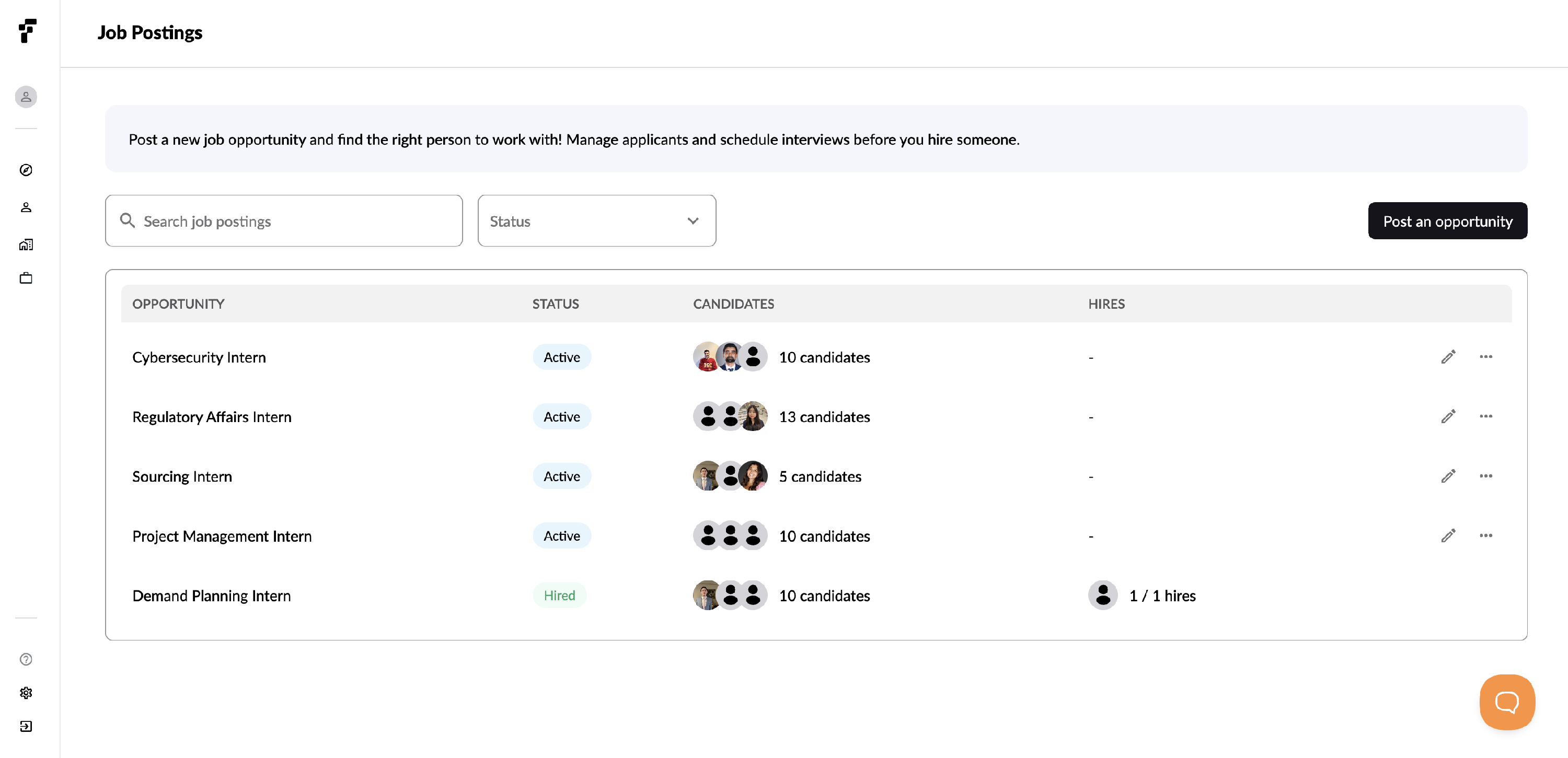
![](//d33v4339jhl8k0.cloudfront.net/docs/assets/6762753dff440c4ab171ea2a/images/680efe9aaec6770aa9c7f4af/file-8a3o42o9Cf.png)

A job listing can be drafted, active, paused, or hired.

**Drafted**: This job listing is not published on the Folio Platform yet.

**Active**: This job listing is published on the Folio Platform, and talent can apply for this position.

**Paused**: This job listing was active, but hiring has been paused for it. It’s no longer published on the Folio Platform, but you can still see who applied to it when it was active. You can re-activate a paused job listing at any time.

**Hired**: Talent has been hired for this job listing. It’s no longer published on the Folio Platform.

### Managing Applicants <a href="#managing-applicants" id="managing-applicants"></a>

To see who has applied for the job listing, click the **Applied** tab within the listing. Here, you can see each applicant’s name and their status (either Applied or Rejected). To view an applicant’s Folio profile, simply click on their name.
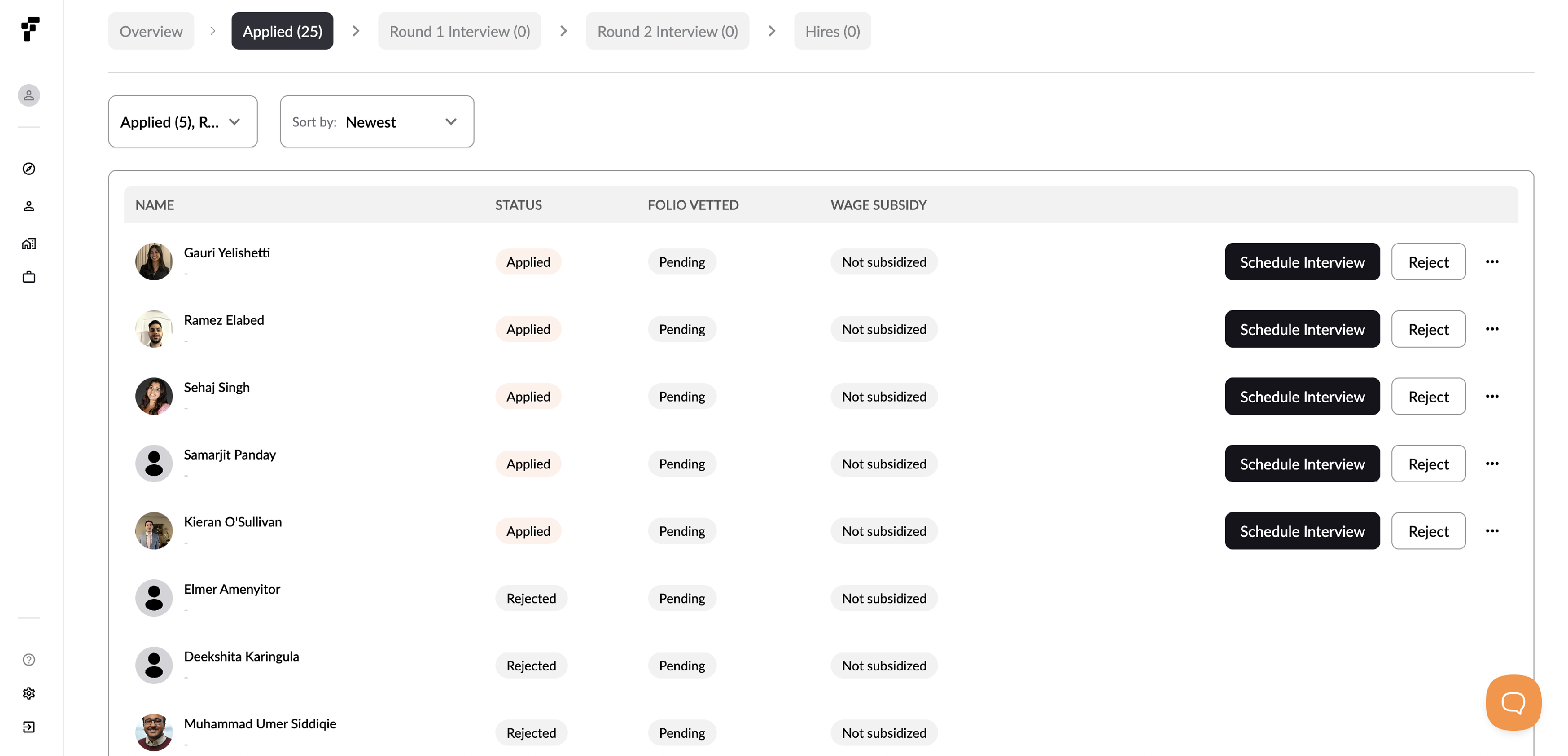
![](//d33v4339jhl8k0.cloudfront.net/docs/assets/6762753dff440c4ab171ea2a/images/680eff46190e2248c3280170/file-QPZruZTpsa.png)

Interviewing and Hiring

In the **Interviewing** section, you'll have the option to either hire or decline a candidate. Folio will automatically handle communication by sending emails to inform candidates of their application status based on your decision.
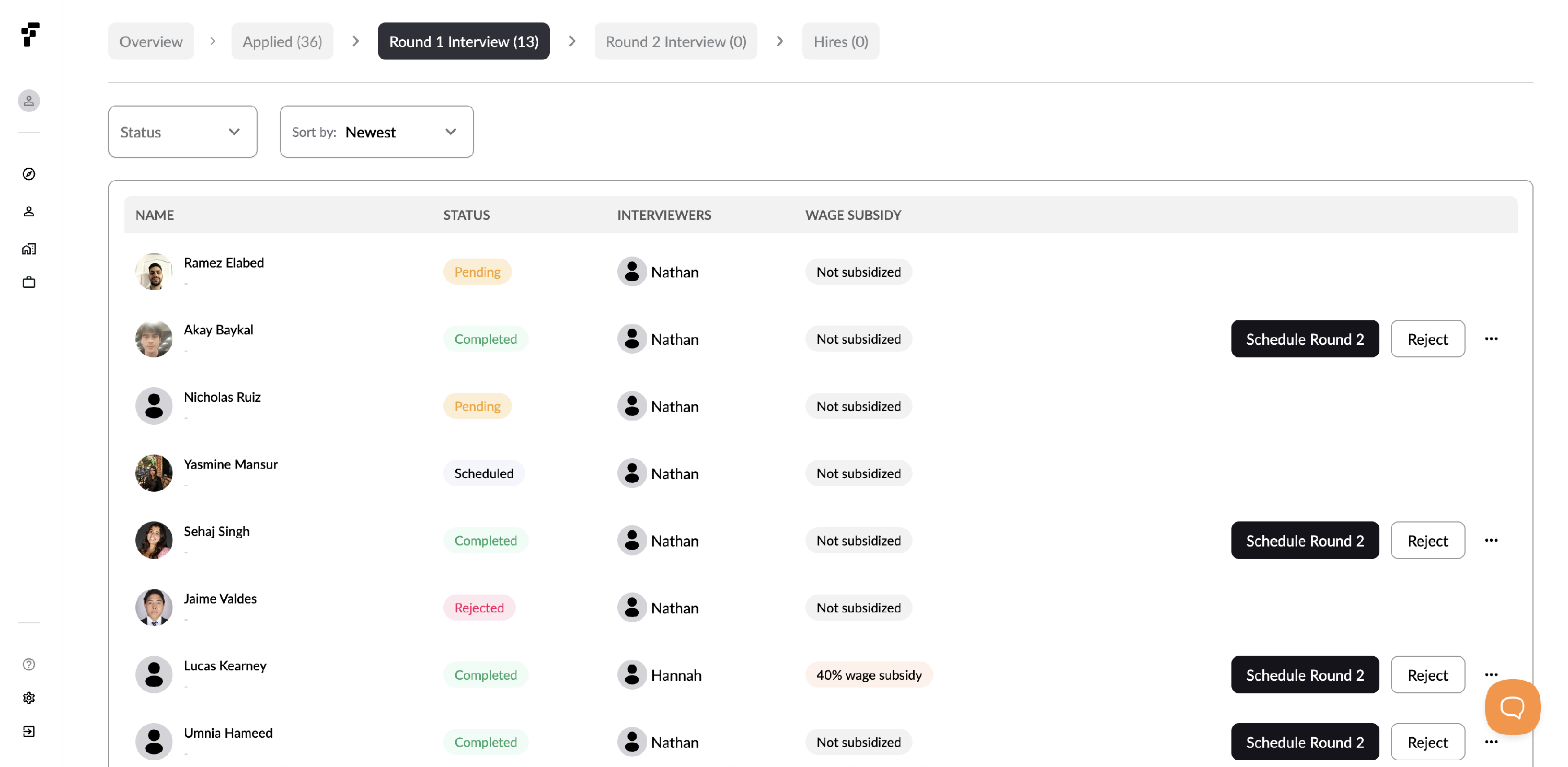
![](//d33v4339jhl8k0.cloudfront.net/docs/assets/6762753dff440c4ab171ea2a/images/680f0097439fd1692ac25567/file-fcr7SddpCl.png)

If you decide to hire a candidate, the next steps involve confirming project details, creating an onboarding plan, and finalizing the process by clicking **Confirm**. To confirm project details, review the job listing in the dropdown menu to ensure that the budget, timeline, and responsibilities align with the expectations for the candidate you plan to hire. After that, attach any necessary onboarding materials, such as additional contracts (like NDAs), company informational documents, or a Slack invitation.

If you need to add or update onboarding materials, simply click the **Add onboarding step** button located in the top right corner of the screen.

![](https://docs.folio.works/~gitbook/image?url=https%3A%2F%2F2071357124-files.gitbook.io%2F%7E%2Ffiles%2Fv0%2Fb%2Fgitbook-x-prod.appspot.com%2Fo%2Fspaces%252FYJlhcMgiaGZoJPYFSKyg%252Fuploads%252FZlH6atWKx87d26Yrg8Kj%252FProject%2520Onboarding.png%3Falt%3Dmedia%26token%3D3aa57fca-0e9f-4bcf-ac89-f462235cd0af\&width=768\&dpr=4\&quality=100\&sign=3e178b2d\&sv=2)

After you’ve added an onboarding plan for your talent, you’ll confirm that you’re ready to hire your candidate, and you’ll be off and running! Your hired candidate will now appear in the **Hired** tab of this job listing, where you’ll be able to view their contract for the project.

<br>

### Reviewing Timesheets and Paying

Students will submit timesheets on a regular basis, typically every week or every other week. You can head to the Jobs > Contracts section from the sidebar to see active Contracts and recently submitted hours. Under the Tasks tab, select the student's name to see their recently submitted hours. If approved, select the dollar icon on the right to process payment.

If this is your first time paying a student, you'll be prompted to add your credit card to your account. Folio uses Stripe for secure credit card storage and processing.


# Onboarding Steps

Add onboarding steps for your hired interns to review.

The onboarding feature streamlines the talent onboarding process. It allows you to pre-upload and store standard onboarding steps, resources, and materials. When you hire talent, you can easily select and assign these pre-loaded items, eliminating the need to manually recreate the onboarding process each time.&#x20;

This ensures consistency and saves time by making your established onboarding procedures readily available and easily customizable for each new hire.&#x20;

<figure><img src="/files/DnYwjEwlduCMxiuHKRy1" alt=""><figcaption></figcaption></figure>

You can add links, instructions, and specific assignments based on the program track. Additionally, you can upload files for your talent to review.

<figure><img src="/files/3gfbPQyP3asmCz5SSQz7" alt=""><figcaption></figcaption></figure>

Once you've successfully added your onboarding steps, they will be available for you to assign during the hiring process in job postings.


# Employer Profile

The employer profile provides talent with a concise overview of an employer.

The employer profile page enables you to share a brief summary about yourself and add links to your LinkedIn, GitHub, and other profiles.&#x20;

This profile is visible to both talent users and other employers, helping them learn about your role and connect with you.

<figure><img src="/files/lWFGgd9WEfO1LK4P7BeW" alt=""><figcaption></figcaption></figure>


# Managing Active Contracts and Payments

All of your team's active jobs (contracts) can be managed from within Folio.

### Manage Contracts <a href="#manage-contracts" id="manage-contracts"></a>

After you successfully hire talent, you can navigate to the **Contracts** tab in **Jobs** to monitor tasks, update deliverables, modify details, and facilitate payment.

Clicking into an active contract, you'll find four tabs:

**Onboarding:** View onboarding materials associated with this project, as well as track who has not yet completed their onboarding. You can click on the onboarding material dropdown to add or edit any materials, or click on the talent dropdown to see which tasks still need to be completed.

**Tasks:** You can view talent-inputted tasks and assign deliverables associated with this project. Click the dropdown for each intern to see the tasks they are working on and have logged hours or line items for.

**Payments:** You can view each talent's hours per week, rate, and total outstanding payment due.

**Details:** Revisit the original job posting and details associated with it, end your contract with specific talent, or change the payment rate.

<figure><img src="/files/8FNyFKiyhqhKecjdNeuN" alt=""><figcaption></figcaption></figure>

<figure><img src="/files/IjmKZn3mbww9zf1TKIXO" alt=""><figcaption></figcaption></figure>

### Facilitating Payments <a href="#facilitating-payments" id="facilitating-payments"></a>

Payments are automatically handled every two weeks:

1. Your talent will complete a timesheet either daily or weekly, whichever you decide and communicate to them.
2. Every two weeks on Mondays, the Folio Team will send a consolidated timesheet to the company account Owner.
3. 48 hours after on Wednesdays, Folio will charge your credit card on file and issue a payment to your talent for the wages earned.
4. If you have any questions between Monday and Wednesday, please reach out to <support@folioworks.com>

You can view the hours at any time by heading to the Contract details from the left sidebar.

<figure><img src="/files/07H2AHxTcNekpOMO1tEg" alt=""><figcaption></figcaption></figure>

### Changing Payments Rate <a href="#changing-payments-rate" id="changing-payments-rate"></a>

To alter the rate for an individual, navigate to the **Payments** tab for the contract they are under. Then, click the three dots next to the intern’s name and select **Change Payment Rate**.

If the intern has already entered tasks, you can either apply the changed payment rate to both existing and future hours—meaning your balance due will reflect the intern’s new payment rate—or choose to apply it only to future hours, meaning you’ll pay the new rate only after any outstanding balance is paid.

<figure><img src="/files/2GAezKFOjfw3Dd8dg5Eb" alt=""><figcaption></figcaption></figure>


# Employer Onboarding

Getting started as an employer on Folio is straightforward.

Once you select the employer option during sign up, you can create a new organization or join an existing one if another team member has already made a company profile.

<table data-view="cards"><thead><tr><th></th><th></th><th></th><th data-hidden data-card-cover data-type="files"></th><th data-hidden data-card-target data-type="content-ref"></th></tr></thead><tbody><tr><td><strong>Creating a New Organization</strong> </td><td></td><td></td><td></td><td><a href="/pages/1XTbutf0MaBQQQs8eX7W">/pages/1XTbutf0MaBQQQs8eX7W</a></td></tr><tr><td><strong>Join an Existing Organization</strong> </td><td></td><td></td><td></td><td><a href="/pages/hw77lSxXXxHSHxf0aifp">/pages/hw77lSxXXxHSHxf0aifp</a></td></tr></tbody></table>

### Reach out for support! <a href="#were-always-available" id="were-always-available"></a>

Feel free to email us at <support@folio.works>.&#x20;


# Create a New Organization

Onboarding as a new employer.

## Step 1: Write Organization Details

To get started, enter your company's name, and add high-level information. Please note the company website, location, and short overview are all <mark style="color:red;">mandatory fields</mark>.

<figure><img src="/files/lsjizT4yLixxKCjIMORu" alt=""><figcaption></figcaption></figure>

## Step 2: Invite Team Members

You can invite team members to help view, post, and manage job postings and contracts. Once you enter their email and click Add teammates, they will receive an invitation to set up their account and profile. Once they successfully do so, they will be onboarded to your organization profile.

<figure><img src="/files/wMrNY0irnUj6M8LmpqPI" alt=""><figcaption></figcaption></figure>

## Step 3: Profile&#x20;

For the final step, you need to populate your individual user profile by adding your role, personal Linkedin profile, and a short bio about yourself.

<figure><img src="/files/JW0IpG4KFl7yyKb0b0pG" alt=""><figcaption></figcaption></figure>

{% hint style="success" %}
And you're done! Feel free to post a job or start browsing talent on the platform!
{% endhint %}

### Reach out for support! <a href="#were-always-available" id="were-always-available"></a>

Feel free to email us at <support@folio.works>.&#x20;


# Joining an Existing Organization

If another team member has already created your organization on Folio, learn how to request to join below.

## Step 1: Search for Company

Start typing your organizations name. If it populates on the dropdown, select the organization.&#x20;

<figure><img src="/files/AdZgVowhNRVsqkALeY7Q" alt=""><figcaption></figcaption></figure>

## Step 2: Request to Join

Double-check that you have selected the right organization. You should see the company's name, the location, and the primary admin, as well as their name and title.

After requesting to join, the admin will receive an email notification, where they can approve your request.

<figure><img src="/files/qqTnER5qjK3oGtZyrwXZ" alt=""><figcaption></figcaption></figure>

## Step 3: Profile

While you wait for the admin to approve, you can still set up your user profile. After you fill in the required fields, you'll see your company's profile, but you can only edit or manage job postings or contracts once the account admin approves your request.

<figure><img src="/files/IIlcuzHbgqqvjIuMKGHd" alt=""><figcaption></figcaption></figure>

<figure><img src="/files/a4X7wYORX0rtdUWh7oBR" alt=""><figcaption></figcaption></figure>

<figure><img src="/files/ubaCChIGVnZleKh8KeIF" alt=""><figcaption></figcaption></figure>

### Reach out for support! <a href="#were-always-available" id="were-always-available"></a>

Feel free to email us at <support@folio.works>.&#x20;


# Employer FAQs

Commonly asked questions by employers.

<details>

<summary>How do I get more applicants?</summary>

On the sidebar, navigate to the ‘Discover’ page. You can use our search feature to look for any specific skills, schools, or locations to find interns. Once you click on a profile, you can send them an interview request with a message. An automatic email from Folio will be sent to them with a link to schedule a time on your calendar. If you have not set up your calendar yet, use [this link](broken://pages/fty4YDaHvN24bKCC45xj).

</details>

<details>

<summary>How do I hire a student after interviewing them?</summary>

1\. Use the sidebar to click ‘Jobs,’ then ‘Job Postings.’ Click on the position you are hiring for and click the ‘Interviewing’ Tab. Next to the student’s name, click the ‘Hire’ button. The system will ask for a payment method that will be charged every 2 weeks based on the approved hours that your intern marks on their timesheet on the Folio platform.

2\. You will be brought to a screen where you review project details (e.g. pay and timeframe of internship) and add any onboarding materials you would like to send your intern.

3\. After you press confirm, your intern will automatically be sent their onboarding materials and show up in the Folio platform as Hired! This will create a contract between you and your intern. You can manage your intern and approve their hours at this link: <https://app.folioworks.com/myprojects/contracts>

</details>

<details>

<summary>How do I use the messaging feature on Folio’s platform?</summary>

Messaging/chat is a feature that allows you to reach students in an alternative method than email. Click the ‘Messaging’ tab at the bottom right of your screen and click the pencil icon to write a new message. Search for the student’s name and write them a message to interview for your position!

</details>

<details>

<summary>Why are students not responding?</summary>

First, please check that your calendar is connected to the platform, as this allows students to schedule a time to interview with you. Here are instructions on how to do so: [Connecting Your Calendar to Your Account](broken://pages/fty4YDaHvN24bKCC45xj)&#x20;

Students may be unresponsive for various reasons (e.g. exam periods, school breaks, limited weekend availability). We recommend emailing students directly with a reminder to schedule a time to interview 2 days after your initial request. If they are still not responding, you can find more interns at the ‘Discover’ page on the sidebar and use our search feature to look for any specific skills, schools, or locations to find interns. We highly recommend directly emailing students, as this increases their responsiveness.

</details>

<details>

<summary>How do I send a takehome project/assessment to candidates?</summary>

We recommend formatting the takehome project/assessment as a Google Doc, then emailing it directly to any students you are interested in working with. Provide a deadline (\~2-3 days) to submit. A good takehome should be 45 minutes-1 hour in length with instructions that are easy to understand.

</details>

<details>

<summary>Are there any intern requirements or restrictions I should be aware of? </summary>

Some of our interns have requirements or restrictions regarding how and when they can work. For example, students from UC Berkeley cannot work more than 20 hours per week to qualify for Work-Study funding.

Make sure to ask each intern at the beginning of your interviews if they have any restrictions or requirements from their program. Reach out to [support@folio.works](mailto:addison@folio.works) if you have questions or concerns about any requirements/restrictions in interviews - we might be able to help!

</details>

<details>

<summary>How do I pay my interns?</summary>

Paying your interns is quick and easy.

1. To finish setting up your account, you'll be prompted to add a credit card that will be saved securely in Stripe.
2. Your intern will complete a timesheet either daily or weekly, whichever you decide and communicate to them.
3. Every two weeks on Mondays, the Folio Team will send a consolidated timesheet to the company account Owner.&#x20;
4. 48 after on Wednesdays, Folio will charge your credit card on file and issue a payment to the student for the wages earned.
5. If you have any questions between Monday and Wednesday, please reach out to <support@folioworks.com>

</details>

<details>

<summary>How do I contact Folio?</summary>

You can contact the Folio team at any time, for questions related to intern payment, timing, contract management, program details, subsidy details, or anything else!

Email: <support@folio.works>. We will respond within 3 hours during normal business hours.

</details>

<details>

<summary>Does Folio provide ongoing support to interns during their placement with employers?</summary>

Folio is committed to supporting your team and your intern throughout this process.  Please refer to the chart below for direction on who to reach out to, if needed.&#x20;

#### <img src="/files/pbj3Qdnq9TB8UaHDaBlV" alt="" data-size="original">

</details>

<details>

<summary>How do I hire additional interns?</summary>

Once you’ve ended your contract with your current interns, or if you need more hands on deck in the middle of your project, you can hire additional interns through Folio. To employ new interns, please log in to your Folio account and follow the steps to [post a new job description](/for-companies/posting-a-job).&#x20;

Our team will contact you at the beginning of each month with a new batch of qualified, subsidized interns. If you are interested in interviewing a candidate from the new talent pool, simply reply to the email, and we will facilitate an introduction.

</details>

<details>

<summary>How many hours is the intern expected to work per week? What happens at the end of the internship?</summary>

Most interns can dedicate at least 20 hours/week, some more. It depends on what other commitments they are balancing (mostly classes during the semester). We encourage our interns to have an open and transparent conversation about their capacity during onboarding if there is a mutual match! Over the summer, interns are usually available for up to 40 hours/week.

</details>

<details>

<summary>Is my company required to do anything other than sign up with Folio?</summary>

We recommend you create a clear scope of work for your interns and check in weekly to ensure you get sound work output.

</details>

<details>

<summary>What do other companies that typically use Folio’s services do?</summary>

They post a project on Folio and set the hours and rate. Many of our companies have provided a paid extended offer if the intern is valuable.

</details>

<details>

<summary>What job functions do your interns possess?</summary>

The interns have skills and experience across engineering, design, data science, product, sales, and business/finance.

</details>

<details>

<summary>Does Folio help with student visas?</summary>

Folio is a marketplace and payment facilitator, but is not the direct employer of student contractors. As such, all visa (CPT / OPT / H-1B) reuqests should be handled by the contracting company.&#x20;

</details>

### Reach out for support! <a href="#were-always-available" id="were-always-available"></a>

Feel free to email us at <support@folio.works>.&#x20;


# Student FAQs

Commonly asked questions by students.

<details>

<summary>I got an interview invitation. How do I schedule a time?</summary>

You should have received an email from <projects@folio.works> with a direct link to schedule an interview. Click into that link and select a time that works with the employer for your prospective internship. If the calendar is not loading or not working, send a message to <support@folio.works>.

</details>

<details>

<summary>Why did I get an interview invitation to a job I did not apply to?</summary>

Sometimes, employers are impressed with your Folio profile alone and immediately move you to the interview stage! If you are interested, you should have received an email from <projects@folio.works> with a direct link to schedule an interview. Click into that link and select a time that works with the employer for your prospective internship. If the calendar is not loading or not working, send a message to <support@folio.works>.

</details>

<details>

<summary>Is this internship to work with Folio?</summary>

Sometimes, yes we have internship openings directly with us at Folio! However, we also have many opportunities for internships with our partner companies. During your internship with a partner company, you will log your hours and receive payment on Folio’s platform. However, your manager and team will be from the partner company.

</details>

<details>

<summary>How do I use the messaging feature on Folio’s platform?</summary>

Messaging/chat is a feature that allows for employers to communicate with you in an alternative method than email. Click the ‘Messaging’ tab at the bottom right of your screen to see if you received any messages from employers. Make sure to respond as soon as possible! You can also click the pencil icon to write a new message to other students.

</details>

<details>

<summary>An employer sent me a take home project. Where do I submit it?</summary>

Once you complete your take home, email it directly to the employer! If you don’t know the employer’s email address, send a message to <support@folio.works> and we’ll send you their information.

</details>

<details>

<summary>Does Folio provide work authorization? </summary>

Folio does not provide CPT, OPT, sponsor H1-B visas or guarantee that the company you are contracted with will provide this support. Please work directly with your contracting company to clarify these needs.&#x20;

</details>

<details>

<summary>Am I guaranteed a full-time offer at the end of the internship?</summary>

While we can guarantee several options for your internship (all companies will be venture-backed startups), we cannot assure you that you will receive a full-time offer. That will have to be a discussion you have with the founders before the internship starts, ongoing during your project, and afterward.

</details>

<details>

<summary>How many hours can I work?</summary>

We recommend 10-20 hours/week as an active student. If you are not enrolled, enrolled part-time, or an international student with VISA limitations, we will guide you and your host company.

</details>

<details>

<summary>Can I intern for multiple companies?</summary>

We highly recommend against it, as past experience has taught us that students who take on multiple internships generally struggle to keep up with the demands of each internship.

</details>

<details>

<summary>Can my internship qualify for college credit?</summary>

Yes! College students can work with their university department to earn college credit for their internship. We do not have the resources to facilitate this for you, but we highly recommend you reach out to our department advisor to ask for credit.

</details>

<details>

<summary>How can Folio support my career?</summary>

Folio will empower you to build real-world experience in a job that aligns with your skills and interests. If you're an engineer or designer who loves music, we'll do our best to match you with a music technology company so you can understand what it's like to bridge your passion and profession.

As an intern, you'll prove your skills by working on meaningful projects and gaining a network of peers and professionals excited to support your life-long career journey. Many of our interns have received paid part-time or full-time offers after their internships.

</details>

<details>

<summary>How does Folio support me throughout my Internship? </summary>

We are committed to helping our interns find success throughout their internships. Please refer to the chart below for instructions on who to reach out to in each situation.&#x20;

![](/files/S3CGMBqatRB9x78p4Z98)

</details>

<details>

<summary>How long is the internship?</summary>

This is decided between you and your host company during the interview process. Many internships last around 2-3 months, but other companies may be looking for part time support with fewer hours over a longer period.

</details>

<details>

<summary>What professional development opportunities are there with Folio?</summary>

Our professional development sessions are designed to take you from pre-professional to career confident by exploring topics like AI-usage, time management, ownership mentality, and communication norms. We also run occasional challenges and conversation circles to facilitate community and learning. Join our[ Slack Community](https://folioprofessionals.slack.com/join/shared_invite/zt-28lv2q6lg-wdiTEuED_lr51w8ed1ccSQ#/shared-invite/email) to stay up to date!&#x20;

</details>

<details>

<summary>Can I participate as an international student?</summary>

Yes, we have many international student interns! Please ensure you meet all work authorization requirements for 1099 independent contractor status.

</details>

<details>

<summary>Where can I find my profile URL?</summary>

Navigate to My Profile on the sidebar where you will be brought to your profile homepage. The link in the search bar of your browser is a personalized, shareable URL to any other users on Folio's platform.

</details>

<details>

<summary>How can I withdraw my application?</summary>

First, navigate to the Jobs tab on the sidebar and click Applications. From this screen, you will see a list of all your submitted applications. Find the application you would like to withdraw and click on the three dots to the right of the screen and select Withdraw Application.

</details>

### Reach out for support! <a href="#were-always-available" id="were-always-available"></a>

Feel free to email us at <support@folio.works>.&#x20;


